The story
SituationYour bakery's festive menu goes live next week: a new Salted Caramel Chocolate Tart, a few seasonal cakes with add-ons such as birthday candles, and a busy holiday weekend at the end.
ChallengeEach piece lives on a different page in Web Admin: items, add-on groups, the order items appear in, and stock limits for the busy dates.
MissionKnow which page does what, so the whole festive menu is set up in one sitting and nothing is missed.
This section covers how you can create, update, organise and control the inventory of individual products on your menu through the admin portal. Each part below summarises one task and links to its full step-by-step guide.
Quick answer
Everything is under Menu in the admin portal sidebar: All Items and Create New Item for items (add-on groups are on each item's edit page), Item Sequence for the order items appear in, and Item Inventory Limits for stock limits on specific dates.
Before you start
You are signed in to Web Admin as a brand admin. Store-level accounts can view items but cannot create or change them, and do not see Create New Item, Item Sequence or Item Inventory Limits.
The categories you need already exist. See Create a new menu category.
Note
If your menu is managed by your POS system, menu editing is locked in Web Admin: the create, sequence and limit pages are hidden and item pages open as view only. Make menu changes on the POS instead. Ask your Eats Venture account manager if you are unsure.
Creating and editing menu items
To add an item, navigate to Menu > Create New Item; to change one, select an existing item to edit from Menu > All Items (see How do I edit a menu item?). Both forms have the same sections:
| Feature | Action | Description |
|---|---|---|
| Access | Navigate to Menu > Create New Item or select an existing item to edit. | Opens the item form. |
| Menu Information | Set Name, Price, Category, and Description. Use Original price for strike-through promotions. | Defines the item's core identity and pricing structure. |
| Additional Information | Add SKU (optional) and Care Instruction Note for consumers. | Provides important usage/storage details. |
| Media | Upload up to 5 Images (1:1 square format, min 480 x 480 pixels). Add up to 2 Video URLs (TikTok or YouTube direct links only). | Provides visual presentation to customers. |
| Store Availability | Check the boxes for stores where the item is Available. Unchecked stores will hide the item. | Controls branch-specific item visibility. |
| Preparation Time | Enable and set time (in hours/days): By hour(s), minimum 1 hour, or By day(s), minimum 1 day. The item is marked as "Pre-order". | Ensures users cannot check out if the time frame is less than the required preparation time. |
| Custom Availability Dates | Set a Start Date and optional End Date for the item to appear on the store page. | Used for seasonal or limited-time offerings. |
| Recurring Inventory Limit | Enable and set daily maximum quantities for each day (Monday to Sunday). Can also set custom limits for specific stores. | Sets a consistent stock cap that automatically resets weekly. |
Note
Earlier versions of this guide said items exceeding a certain preparation time are marked as "Pre-order". In fact every item with preparation time enabled is marked "Pre-order".
Marketing tip
For a launch, enter a higher Original price and set Custom Availability Dates for the launch period. Customers see the saving crossed out, and the item leaves the menu on the end date without anyone having to remember.
To stop selling an item at some branches, or to mark it sold out for a few days, see Managing Item Availability & Stock Limits.
Managing add-on groups
Add-on groups are used to define a set of mandatory or optional choices (like size, flavour or extras) linked to a specific menu item. The add-ons themselves are created first under Menu > Create New Add-on; see Create a new add on menu.
1. Create a new add-on group
Access: while editing a menu item, locate the ADD-ON GROUP section. Click Add new group.
Group information: on Create New Add-on Group:
Enter the Add-on Group Name (for example "Patties").
Set Minimum Selection and Maximum Selection (for example 1 and 1 for a mandatory single choice). A minimum of 0 makes the group optional.
Add-on Group Items:
Click Add Item to select the individual add-ons that belong to this group (for example beef patty, chicken patty), once for each add-on.
Finalise: click Submit to save the new group. You see Add on group updated! and return to the item.
2. Copy an existing add-on group
Access: in the ADD-ON GROUP section, use the Copy from other menu feature: click Select a menu.
Select the source Category and the source Menu item (for example "Coffee Club Premium Package").
Click Copy to duplicate the group structure to the current item. You see "Add-on group copied from" followed by the source item's name.
Ops tip
Set the group up carefully once, on one item, then copy it to the rest. Every cake gets the same candle and message options, and the kitchen always receives orders in the same format.
Item sequence (re-ordering display)
This allows you to control the visual order of items within a category using drag and drop. Full guide: How do I edit an item sequence?
Navigate to Menu > Item Sequence.
Select the desired Category.
Drag and drop item tiles to re-order the menu sequence, or pick a sorting option and click Sort.
Click Save sequence.
Put the launch item first, and the customers who arrive from your post see it before anything else.
Item inventory limits (temporary stock control)
This feature is used to temporarily override the inventory for specific dates and branches. Full guide: How to manage and set Inventory limits for items.
Navigate to Menu > Item Inventory Limits.
Click New setting.
Specify the Date or Date Range (up to 30 days ahead) and select the target Branch(es): All branches or a Specific branch.
Select the menu item with Choose menu and enter the custom inventory limit.
Note: entering '0' marks the item as 'Sold out' for the specified period. An empty box also counts as 0.
Click Continue to save, then Confirm. (The inventory resets to default after the specified dates.)
When setting a temporary item inventory limit, be aware of how this new setting interacts with existing limits.
Important note on inventory override
The temporary inventory limit you are setting for the specified date range (for example 29 Nov 2025 - 30 Nov 2025) and branch(es) will override the default limit (if any) for the affected menu item(s), including any Weekly recurring setting.
You can view the details of the existing overridden settings by clicking the View settings button on the confirmation screen before finalising the temporary limit.
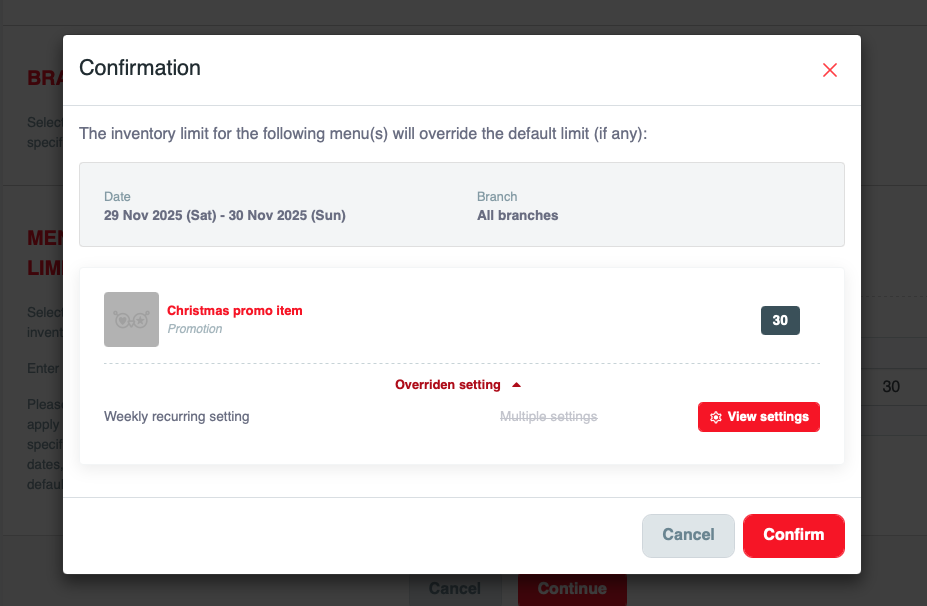
In the screenshot, the confirmation reads "The inventory limit for the following menu(s) will override the default limit (if any):", for 29 Nov 2025 (Sat) - 30 Nov 2025 (Sun) at All branches. Christmas promo item gets a limit of 30,
The Overriden setting panel shows the Weekly recurring setting it replaces, with View settings to open it. Click Confirm to save, or Cancel to go back.
Note
If your Web Admin shows Daily Limits instead of Item Inventory Limits, it is the same page and works the same way.
If something goes wrong
"Maximum does not allow larger than the current item list": an add-on group's maximum is higher than the number of add-ons in it.
"Minimum selection is not allow to be larger than maximum": lower the minimum or raise the maximum.
"Unable to Save Settings": an inventory limit conflicts with an existing active setting for the same item, branch and date.
"Menu is read-only (synced from POS)": your menu is managed by your POS.
Mission accomplished: what you have achieved
- A map of the menu pages. You know where items, add-ons, order and limits each live.
- Set up once, reused. Add-on groups copy across items instead of being rebuilt.
- Busy dates under control. Temporary limits override the usual ones and reset by themselves.
Next season's menu follows the same path: items, add-ons, sequence, limits.
Related
Last updated: 27 October 2026