The story
SituationIt is a busy Friday. Your Bangsar branch has stopped making the Salted Caramel Chocolate Tart for good, and at the other branches tomorrow's tarts are already nearly spoken for.
ChallengeCustomers at Bangsar can still order a tart the kitchen will never make, and everywhere else, online orders for Saturday could overtake what the bakers can produce.
MissionTake the tart off the Bangsar menu for good, and cap Saturday's tarts at the other branches, without touching anything else on the menu.
This guide shows you how to control item availability on your store page, depending on whether an item is permanently discontinued at a branch or only has stock limits on certain days. The two methods use different pages, so pick the one that fits.
Quick answer
No longer selling it at a branch: go to Menu > All Items, edit the item and untick the branch under Available at stores, then click Update. Limited or sold out on certain dates: go to Menu > Item Inventory Limits, click New setting, set the dates, branch and quantity (0 for sold out), and click Continue.
Which method do I need?
The item is removed from your menu, or no longer offered at selected locations: use method 1. The item stays hidden at those branches until you tick them again.
The item is still on the menu, but stock is limited, or it is sold out for a specific date range: use method 2. The setting ends by itself after the dates you choose.
Before you start
You are signed in to Web Admin as a brand admin. Other accounts can view items but cannot change them, and do not see Item Inventory Limits.
For a quick sold out during service, branch staff can also switch an item off in the EatsVenture Cashier app. See How to enable and disable food menu and add-on.
Note
If your menu is managed by your POS system, menu editing is locked in Web Admin, and these settings are made on the POS instead. Ask your Eats Venture account manager if you are unsure.
1. Discontinuing items permanently (no longer for sale)
Use this method when an item is removed from your menu or is no longer offered at selected locations.
Go to Menu > All Items.
Click Edit on the item you want to modify (the page address ends in
.../menu/edit/[item_id]). You can also click the item name.Scroll down to the AVAILABLE AT STORES section ("Select the stores where this menu should be available by checking the boxes. Unchecked stores will not show this menu.").
Toggle off or uncheck the specific stores where the item should no longer be sold. Deselect all clears every branch at once.
Save your changes. The button is Update, at the bottom of the page; you see Menu is updated!.
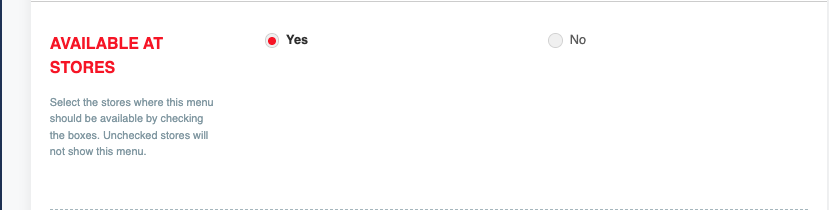
If your account manages a single branch, the section shows Yes and No instead of a list of branches, as in the screenshot. Choose No to stop selling the item there.
CEO tip
Unticking a branch is safer than deleting the item. The photos, price, add-ons and settings stay intact, so if the item comes back next season, or another branch starts selling it, you tick a box instead of rebuilding it.
That is it. Customers at Bangsar no longer see the tart, and every other branch carries on as before.
2. Managing daily stock availability (sold out or custom inventory)
Use this method to manage day-to-day stock levels or temporarily mark an item as sold out for a specific date range.
Navigate to Menu > Item Inventory Limits in the left sidebar.
Click New setting. This opens the Create Custom Inventory Limit page.
Set Dates: choose a specific date or date range for the stock limit to apply, from today up to 30 days ahead.
Select Branch: choose All branches or select a Specific branch. With All branches, the quantity applies to each branch separately.
Set Inventory Limit: click Choose menu, select your items, and enter the quantity available:
Enter
0to mark the item as 'Sold out'.Enter a specific number (for example
10) to limit daily sales.
Click Continue to save. Then click Confirm in the confirmation window. You see Inventory settings created successfully.
Note
Earlier versions of this guide said to click Create Custom Inventory Limit. That is the title of the form; the button on the Item Inventory Limit page is New setting. If your Web Admin shows Daily Limits instead, that is the same page.

The form explains each part: "Choose a date or date range", "Select either all branches or a specific branch to apply this setting", "Select menu to customize its inventory limit", and "Enter '0' to mark as 'Sold out'".
Note: Custom inventory settings automatically reset to default values after the specified effective dates pass.
Caution
A quantity box left empty is saved as 0, which marks the item sold out for those dates. Check every item has the number you meant before you confirm.
Ops tip
The limit counts orders by their pickup or delivery date. Set it to what the kitchen can produce for that day, so advance orders for Saturday stop at the right number even if they arrive on Wednesday.
For the full walkthrough, including how this interacts with an item's weekly limit, changing or deleting a setting, and conflicts, see How to manage and set Inventory limits for items.
That is it. Saturday's tarts stop at the number your bakers can make, and on Sunday the usual limits are back.
If something goes wrong
The item still shows at a branch: check that the branch is unticked under Available at stores and that you clicked Update.
"Please select at least one menu item": click Choose menu and pick at least one item.
"Unable to Save Settings": another active setting already covers the same item, branch and date. Change or delete it first.
"Menu is read-only (synced from POS)": your menu is managed by your POS. Make the change there.
Mission accomplished: what you have achieved
- Gone where it is gone. The discontinued item no longer shows at that branch, and nowhere else is affected.
- Orders the kitchen can keep. Busy days stop at the quantity you set.
- Nothing to undo. Date limits end by themselves, so normal service returns without a reminder.
Next time stock runs short, you know which of the two pages to open.
Related
Last updated: 27 October 2026