The story
SituationChristmas weekend is coming, and the Salted Caramel Chocolate Tart is on every party table. Normally each branch sells up to 20 a day.
ChallengeFor 24 and 25 December the bakers can make 30 per branch, but the oven at one branch is being serviced on the 24th, so it cannot sell any that day.
MissionRaise the limit to 30 for those two dates, mark the tart sold out at the one branch on the 24th, and have everything go back to normal on the 26th without anyone touching it.
The Item Inventory Limits feature allows you to temporarily set stock limits for specific menu items on defined dates and at selected branches. This guide shows you how to set one up, check it and remove it.
Quick answer
Tap the Menu option in the admin portal and tap Item Inventory Limits. Click New setting, fill in all the details (dates, branch, items and quantities) and tap Continue, then Confirm.
Before you start
You are signed in to Web Admin as a brand admin. Item Inventory Limits is not shown to store-level accounts.
The dates you need are within the next 30 days. A setting can start today and cover up to 30 days.
You know the quantity for each item. The limit counts orders by their pickup or delivery date, not the day the customer placed the order.
Note
If your menu is managed by your POS system, menu editing is locked in Web Admin and Item Inventory Limits does not appear in the sidebar. If your Web Admin shows Daily Limits instead, it is the same page and works the same way.
How date limits fit with your other limits
An item can have a Recurring weekly inventory limit on its own edit page: a quantity for each day of the week that repeats every week. A setting made here is a temporary override for particular dates.
For the dates and branches you choose, this setting replaces the item's default limit, including any weekly recurring setting.
A setting for a Specific branch takes priority over an All branches setting for that branch on the same date.
With All branches, the quantity applies to each branch separately. A limit of 30 means up to 30 at every branch, not 30 shared between them.
After the specified dates, the inventory resets to its default values.
Step 1: Open Item Inventory Limits
a) Tap on (a) the Menu option in the admin portal and tap (b) Item Inventory Limits, under Items.

Step 2: Click New setting
b) On the Item Inventory Limit page, click on New setting at the top right.

The same page lists your existing settings. Use Search by menu name to find an item, Group by Date or Setting to change how they are grouped, tick Active or Expired under Status, and choose the order under Sort, for example Effective date (Ascending).
Step 3: Fill in the details
c) Fill in all the details on Create Custom Inventory Limit and tap on Continue to proceed.

Dates
"Choose a date or date range". Click Dates and pick the first and last day, for example 24 Dec (Wed) - 25 Dec (Thu). For a single day, pick the same date twice, as in the screenshot (27 Oct 2026 (Tue) - 27 Oct 2026 (Tue); an earlier screenshot showed 24 Nov 2025 (Mon) - 24 Nov 2025 (Mon)).
Branch
"Select either all branches or a specific branch to apply this setting." Choose All branches, or Specific branch and pick one branch from the list. For two different branches with different numbers, create two settings.
Menu and inventory limit
Click Choose menu. In the Menu Picker, filter by category or search, tick the items (or Select all), and click Continue. Each chosen item appears with its photo, name and category, as Soondubu Jigae Seafood Set from Soondubu Jigae Set does in the screenshot (an earlier screenshot showed Mushroom Egg Aglio Olio from Breakfast Set). Enter the quantity next to each one.
Enter '0' to mark the item as 'Sold out' for those dates.
Enter a number, for example 30, to cap how many can be ordered for each date.
Remove an item you picked by mistake with its bin icon.
Caution
A quantity box left empty is saved as 0, which marks the item 'Sold out' for those dates. Fill in every item before you click Continue.
As the form says: "Please note that this setting will only apply to the branches and dates specified above. After the effective dates, the inventory will reset to its default values."
Step 4: Review and confirm
After Continue, a Confirmation window shows the date, the branch and each item with its new quantity, under "The inventory limit for the following menu(s) will override the default limit (if any):".
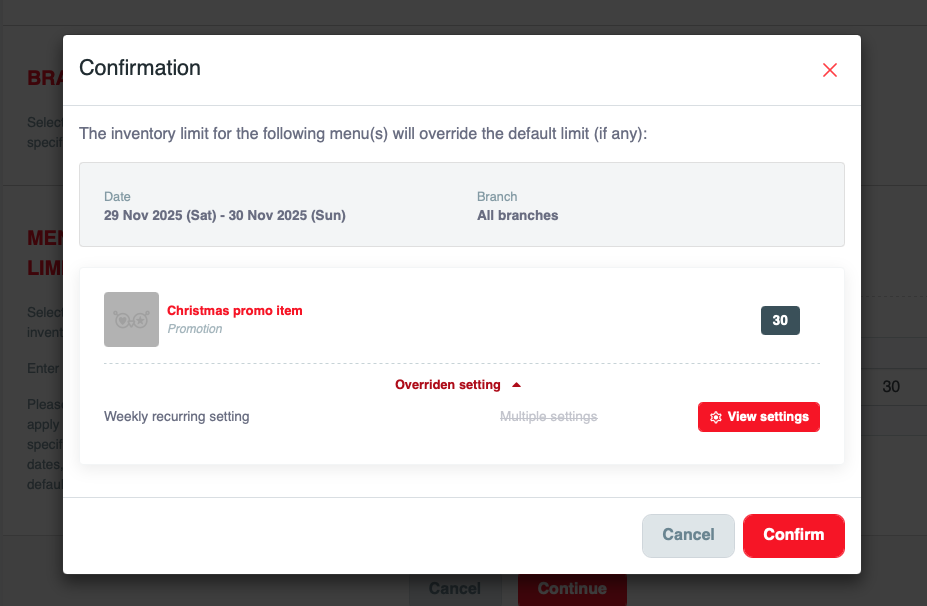
If an item already has a limit that this one replaces, click Overriden setting to see it (for example a Weekly recurring setting) and View settings to open it. Click Confirm to save. You see Inventory settings created successfully and land on the setting's edit page.
That is it. Customers can order up to 30 tarts per branch for Christmas Eve and Christmas Day, and on the 26th the usual 20 a day is back by itself.
Ops tip
Set the number to what the kitchen can really produce for that day, minus what you keep for walk-in customers. Online orders stop at the limit, so your team is never asked for more than it can bake.
Marketing tip
Planning a limited festive run? Set the limit before you announce it. When the batch sells out online, customers see it as sold out instead of ordering something you cannot deliver.
Change or delete a setting
On the Item Inventory Limit page, click the settings (gear) button next to an entry to open Edit Custom Inventory Limit. Change the dates, branch, items or quantities and click Continue, then Confirm; you see Inventory settings updated successfully.
To remove the setting before its dates, click Delete. The window Delete Custom Inventory Setting asks "Are you sure you want to delete this setting? This action cannot be undone." Click Yes, delete this setting to remove it, or No, keep this setting. The item then goes back to its default limit for those dates.
If something goes wrong
"Please select at least one menu item": click Choose menu and pick at least one item.
"Unable to Save Settings" with "The settings you've selected conflict with existing active settings. Please modify your current settings or delete the previous ones, then try again.": another active setting already covers the same item, branch and date. The window lists the Conflicting settings; open one to change or delete it, then try again.
"Please enter the inventory": on the edit page, every item needs a quantity.
I cannot pick a date: settings can only start from today and reach up to 30 days ahead.
An item shows sold out when it should not: check for a setting with 0, or an empty quantity, on that date and branch, and check whether orders have already used up the limit.
Mission accomplished: what you have achieved
- Festive numbers, festive dates. The higher limit applies only on the days you chose.
- One branch, handled separately. The branch with the oven out sells none that day, and the others keep selling.
- Back to normal by itself. After the dates pass, the usual limits return without a reminder.
Next public holiday, it is one setting: dates, branches, numbers, Confirm.
Related
Last updated: 27 October 2026