The story
SituationYour bakery café is starting a weekday set lunch: quiche, soup and a drink, served from 11 in the morning until 3 in the afternoon, Monday to Saturday.
ChallengeThe kitchen only prepares the lunch sets during those hours. A customer who books a 7pm pickup on Sunday must not be able to order one.
MissionShow the Set Lunch section to every customer, but let them order it only for pickup and delivery times inside lunch hours on the right days.
This guide is designed for an administrator managing the online menu. The Category Availability page is used to control when specific sections of your menu (for example Breakfast, Lunch or Weekend Specials) can be ordered by customers. You create a setting once, then attach it to as many categories as you like.
Quick answer
Go to Menu > Category Availability and click New settings. Name the setting, switch on each day it applies and choose All day or a time slot, then click Submit. Finally, open the category under Menu > All Categories and choose the setting under Category availability setting.
Before you start
You are signed in to Web Admin as a brand admin. Category Availability is not shown to store-level accounts.
The category already exists. If not, see Create a new menu category.
You know the days and hours the category should be orderable. Times can be set in 30-minute steps from 06:00 AM to 11:00 PM.
Note
If your menu is managed by your POS system, menu editing is locked in Web Admin and Category Availability does not appear in the sidebar. Ask your Eats Venture account manager if you are unsure.
Step-by-step: Creating Category Availability
Step 1: Access the page
Log in to your Admin Portal and navigate to:
Menu > Category Availability > New settings.
This opens the Create Category Availability page.
Note
Earlier versions of this guide gave the path as Menu Management > Category Availability > Create New. In the current sidebar the section is called Menu, Category Availability sits under Categories, and the button on the page is New settings.
Step 2: Define availability (date and time)
This section determines when the category can be ordered on the website.
Availability Name: under Setting information, enter a recognisable name in Give this setting a name for this rule (for example "Lunch Specials - Weekdays") so you can identify it quickly in the management list. The hint suggests "Weekends only, Breakfast, Tea Time Menu"; the maximum length is 40 characters.
Daily Status and Time Slots: under Settings ("Set the menu availability for each day"), each day from Sunday to Saturday has its own switch. Toggle the specific Day switch on (Active) for every day this menu should be live.
Once active, define the Time Slots (start and end time) for that specific day. Leave a day switched off (Inactive) if the menu should not be available on that day.
Recurring Days: the days you switch on repeat every week (for example, switch on only Saturday and Sunday for a Weekend Brunch category).
Time Slots: input the Start Time and End Time for each active day, using the two drop-downs either side of "to".
Example: for a "Dinner Only" category, set it from 18:00 to 22:00, which the drop-downs show as 06:00 PM to 10:00 PM.
Note: if the category should be available all day, set it to All day.
To serve a category in two windows on the same day, such as lunch and dinner, click Add another time slot under that day. Remove an extra slot with the bin icon next to it.
Note
Earlier versions of this guide said to tick the boxes for the days of the week this category should be visible (for example, check only Saturday and Sunday for a Weekend Brunch category). There are no separate tick boxes: the day switches set which days repeat each week.

In the screenshot, the setting is named "Set Lunch: Mon - Sat 10:45 AM - 3:00 PM". Sunday is switched off. Monday, Tuesday, Wednesday and Thursday are switched on with a time slot of 11:00 AM to 03:00 PM, and the same continues below for the rest of the week.
Customer service tip
Make the setting name match the hours you set. In the example, the name says 10:45 AM but the slots start at 11:00 AM; customers never see the name, but your team will, and a mismatch causes confusion when someone asks why lunch is not orderable at 10:50.
Step 3: Review and save
Double-check: ensure times do not overlap in a way that would confuse the system (for example, two time slots on the same day that cover the same hours). Each category uses one setting at a time, so two different rules cannot apply to the same category at once.
Save: click the Submit button at the bottom of the page. You see New Availability setting created! and the setting opens on its edit page, Edit Category Availability Settings.
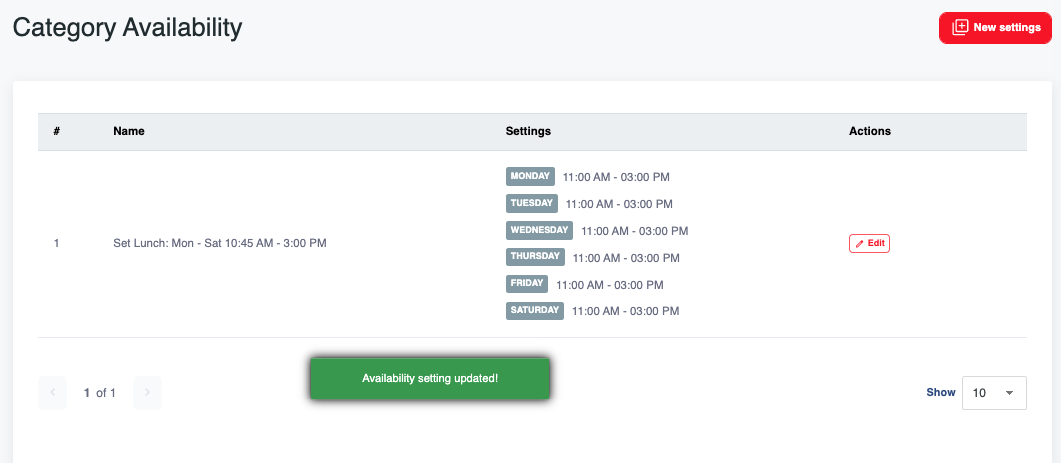
Your saved settings are listed on the Category Availability page with their Name, the active days and hours under Settings, and an Edit button. A setting with every day switched off shows "Not available any day".
Step 4: Attach the setting to your categories
A setting does nothing until a category uses it. Go to Menu > All Categories, click Edit on the category, choose your setting under Advanced settings > Category availability setting, and click Update. You can attach the same setting to several categories. See How do I edit a menu category?
That is it. Lunch sets can be ordered for any slot between 11 and 3, Monday to Saturday, and nobody can book one for Sunday evening.
What customers see
The category is checked against the pickup or delivery time slot the customer chooses, not the time they are browsing. When the chosen slot falls outside the setting, the category stays on the menu with a message under its heading, and its items are greyed out and cannot be added to the cart. The message is one of:
"Available from 11:00 AM onwards": the chosen slot is before today's window opens.
"Available until 03:00 PM only": today's window has already closed for the chosen slot.
"Available on Monday, Tuesday only": the chosen day is switched off; the message lists the days that are on.
"Temporary not available": every day in the setting is switched off.
Some online stores are set up to hide an unavailable category completely instead of greying it out. Ask your Eats Venture account manager which applies to yours.
Marketing tip
A greyed-out Set Lunch section with "Available from 11:00 AM onwards" still works for you: an early customer sees the offer and comes back for lunch.
Change or delete a setting
On the Category Availability page, click Edit next to the setting, change the name, days or times, and click Submit. You see Availability setting updated!. Every category that uses the setting follows the new hours straight away. Back to Category Availability leaves without saving.
To delete it, click Delete this setting. The confirmation reads: "Are you sure you want to delete this setting? All the categories/ menus that are using this setting will be replaced with Default setting." Click Yes, delete this setting. Those categories then become available whenever the store takes orders.
Admin pro-tips
The "Hidden" trick: to temporarily hide a category manually without deleting its availability settings, open the category in All Categories and untick its branches under Availability, then click Update. Tick them again to bring it back; the availability setting stays attached throughout.
Verification: after saving, open the customer site and refresh the page to ensure the category appears (or is greyed out) according to your new schedule. Choose a pickup or delivery time inside the window, then one outside it, and check both.
Hierarchy: remember that if a Category is unavailable or hidden, all Items inside it are unavailable too, regardless of their individual settings.
Note
Earlier versions of this guide said to toggle a Status to Inactive in the category management list. The All Categories list has no Status switch; unticking the category's branches, as above, is how to hide it.
Ops tip
Set the end time to when the kitchen stops preparing that menu, not when the shop closes. Because the check uses the customer's chosen slot, a 03:00 PM end time means no order for that section can be booked for a slot that ends after three.
If something goes wrong
"Setting name is required": fill in Give this setting a name.
The schedule has no effect: the setting is not attached to the category yet. Choose it under Category availability setting on the category's edit page.
The category is greyed out when it should be available: check the day switch for the day the customer chose, and that the whole chosen time slot fits inside one of that day's time slots.
"Menu is read-only (synced from POS)": your menu is managed by your POS, and the setting cannot be changed in Web Admin.
Mission accomplished: what you have achieved
- Lunch only at lunchtime. Customers can only order the section for slots inside the hours you set.
- No orders the kitchen cannot make. Days you switch off cannot be booked.
- One schedule, many categories. Change the setting once and every category that uses it follows.
Breakfast, hi-tea or a weekend brunch next? Create another setting and attach it the same way.
Related
Last updated: 27 October 2026