The story
SituationHari Raya is two weeks away. You want to reward bigger orders with RM10 off every basket of RM150 or more, and post the code on Instagram tonight.
ChallengeThe offer has to stop at 500 claims, each customer should only use it once, and it must not run at the branch that is closed for renovation.
MissionSet up one promo code with the right rules, dates and branches, so it brings in sales without eating into your margin.
This guide walks you through the Create New Promotion form in Web Admin, field by field, so the code works exactly the way you announced it. It starts with an overview of every discount type and rule, and ends with four practical ways to use them to grow sales.
Quick answer
Go to Promotions > Create New Promotion. If the discount is for all customers, leave the members-only switch on No and tap Continue. Pick a Type, enter a name, code and value, set the rules, then click Create to complete the setup and activate the discount.

What you can do with discount codes
Before you open the form, here is everything a promotion code can do, in one view. Each row is a setting on the Create New Promotion form; the steps below show where to find it.
| Type or rule | What it does | Example |
|---|---|---|
| Order amount (type) | Discounts the subtotal of the order, across every item in the basket. | RM10 off the whole order |
| Category (type) | Discounts only the items in the categories you tick. Other items in the basket pay full price. | 15% off everything in your Cakes category |
| Product (type) | Discounts only the specific products you add to the list. | RM3 off your signature cheese tart |
| Delivery (type) | Discounts the delivery fee, on delivery orders only. Set in RM; the discount never goes above the fee itself, so a value at or above your highest fee works as free delivery. | Up to RM15 off delivery, which covers the full fee |
| Fixed amount (RM) | Takes a set amount off. It never takes off more than the amount it applies to, so RM10 off on RM8 of eligible items gives RM8 off. | RM10 off |
| Percentage (%) | Takes a percentage off, up to 100%. You set a Max. promotion value in RM as a cap, or tick Unlimited. | 20% off, capped at RM30 |
| Minimum order amount | The order subtotal must reach this amount before the code applies. | Spend RM150 or more |
| Minimum amount spent on selected items (or categories) | For Category and Product codes: the chosen items alone must add up to this amount. | RM40 or more of cakes |
| Minimum quantity of items on selected items (or categories) | For Category and Product codes: the basket must hold at least this many of the chosen items, in any mix. | 6 or more donuts |
| Order Type | Limits the code to Delivery, Self pick-up or Dine in, in any combination. | Self pick-up only |
| Total usage limit | Stops the code after a set number of paid orders have used it. | First 500 orders |
| Usage per customer | Caps how many times one customer (by mobile number, or email address on email sign-in brands) can use it. | Once per customer |
| Active period | Start and end dates. The code runs from 0:00 on the start date to 23:59 on the end date. The start and end can be the same day. | 1 to 14 March |
| Availability | The branches that accept the code. | All branches except the one under renovation |
| Voucher Discoverable | Shows the code as an option at checkout, so customers do not need to know it. Order amount and Delivery codes appear once the basket reaches the amount you set; Category and Product codes appear once the basket holds an eligible item. | Shown from RM40 |
| Featured and pinned | Puts the promotion on your ordering website's promotion page, with an image; a pinned promotion shows first. | Your festive offer at the top of the page |
| Members-only | Links the discount to a Campfyre loyalty reward, so only members holding that reward can use it. Needs the Campfyre loyalty programme. | A birthday reward for members |
Three things a code does not do, so you can plan around them:
Each order carries one promotion code. Customers cannot stack two codes on the same order.
A code has one value and one minimum. There are no built-in tiers (such as 10% from 6 items and 15% from 12), no "buy one, get one free" type, and no rule for particular weekdays or hours. The plays in Use discounts to grow sales below show how to get close with separate codes and dates.
A code is not tied to one named customer. Anyone who has the code can use it within the limits you set. For offers only your members should get, use a members-only discount.
Before you start
You are signed in to Web Admin as a brand admin. The Promotions menu only appears for admin accounts.
You know the offer: the discount value, the minimum spend (if any), which order types it covers, how many times it can be used, and the start and end dates.
For a members-only discount, the member's reward is already set up in the Campfyre Admin Portal and you have the Campfyre reward ID ready.
If you want to feature the discount on your Promotions page, have a square promotional image ready (800 x 800 px suggested, under 10MB, JPG, PNG or WEBP).
Step 1: Open the form and choose who it is for
Go to the Promotions feature on the left panel of the admin portal.
Click Create New Promotion.

The first question is Is this a members-only promotion? These vouchers are exclusively available to members of the loyalty programme, powered by Campfyre.
If this discount is for all customers, leave the switch on No and tap the Continue button. The form opens with the banner This is not intended for members.
If you are creating a members-only discount, toggle the switch to Yes. Ensure that you have already set up the member's reward in the Campfyre Admin Portal and have the Campfyre reward ID ready. Type it into Enter Campfyre reward ID and tap Continue.


For a members-only discount, Web Admin fetches the reward from Campfyre and shows a Members-only voucher card with the Campfyre reward ID, its Active period and Branch availability, plus a View details in Campfyre button.
The reward ID becomes the code, so the form does not ask for a promotion code or a usage limit; those are managed in Campfyre. Tap Modify on either banner to go back and change your answer.
Note
If the No / Yes switch is greyed out with an Upgrade Plan badge next to it, the Campfyre loyalty programme is not set up for your brand, so members-only discounts are not available yet. Contact us to have it set up. Older screenshots show this screen titled Create new discount; it is now Create New Promotion.
Step 2: Pick the discount type
From the Type options, select a discount type. For example: Order Amount.
Order amount: applies to the subtotal of the order.
Category: applies to the subtotal of the items in specific categories. Tick the categories under Specific categories; all the products in a selected category are eligible.
Product: applies to the subtotal of specific products. Under Specific products, choose a Category, then a Product, and click Add. Repeat for each product.
Delivery: applies to delivery fees.

The rest of the form appears once a type is selected.
Step 3: Name, code and value
Promotion name (shown as Discount Name in older screenshots, for internal and feature use): provide a unique name for tracking and reference, up to 100 characters, for example RM10 Off (RM150 Spent). This text will appear in the default image template when the discount is featured publicly.
Promotion code (Discount Code in older screenshots): you can either create your own code or click the Generate code button (a), and a random code will be created for you. Codes are up to 20 characters and are saved in capital letters, so rm10off becomes RM10OFF.
Value: the discount value can be in RM or percentage % (b). Enter the amount in Promotion value, for example 10.

If you choose %, a Max. promotion value field appears. Enter the most a single order can save in RM, or tick Unlimited. A percentage cannot be higher than 100. A Delivery discount can only be set in RM.
CEO tip
A percentage discount on a large catering order can cost far more than you planned. Set a Max. promotion value so 20% off never turns into RM200 off.
Step 4: Set the rules
Minimum Requirements: set the minimum requirement before a customer can apply the discount (c). Choose None or Minimum order amount and enter the RM amount, for example 150.
For Category and Product discounts the options are Minimum amount spent on selected items (or categories), Minimum quantity of items on the selected items, or Minimum order amount.
Order Type: select the order type(s) this discount will apply to (d): Delivery, Self pick-up and Dine in. All three are ticked by default. A Delivery discount is locked to delivery orders.
Usage Limit: define the total usage limit for this discount throughout the campaign duration (e). Tick the first box and enter, for example, 500 to restrict claims to 500.
Set the maximum number of times a single customer (identified by mobile number) can apply this discount (f). Tick the second box and enter 1 to limit it to one use per customer.
Active Dates: define the start date and end date in Active period to set the total duration of the promotion (g). The discount starts at 0:00 on the start date and ends at 23:59 on the end date. You can schedule the campaign to launch automatically at a future date.

Note
Usage is counted from paid orders that used the code. Leave a usage box unticked for no limit. If your customers sign in with their email address instead of a mobile number, the per-customer limit is counted per email address. On a members-only discount the usage limit section is hidden, because Campfyre controls how often a member can redeem the reward.
Ops tip
Scheduling the campaign ahead means nobody has to remember to switch it on at midnight. Set the start date to launch day and the code goes live at 0:00 on its own.
Step 5: Decide how customers find it
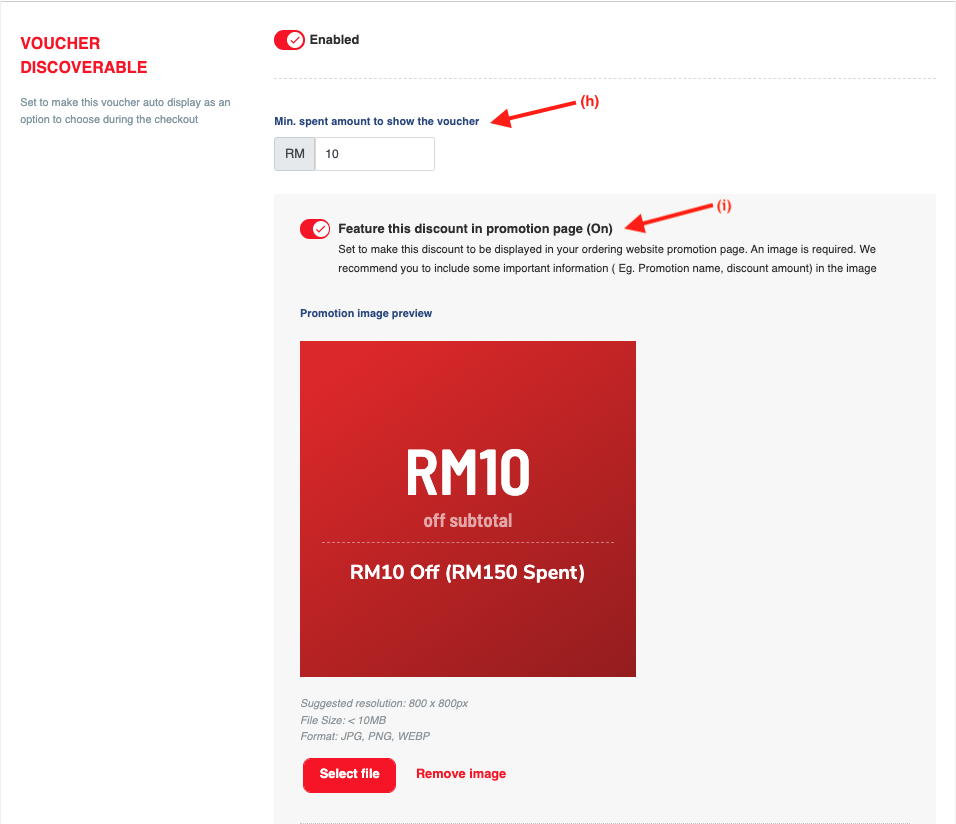
Voucher Discoverable (Minimum Spend to Unlock Voucher Visibility): switch it to Enabled to auto display this voucher as an option to choose during checkout. In Min. spent amount to show the voucher, set the order amount at which the voucher will be displayed to the customer as a potential option (h).
Note
This threshold is for display only and is separate from the minimum requirement to apply the discount. For Category and Product discounts there is no minimum display amount to fill in.
Feature Discount on Promotions Page: once Voucher Discoverable is enabled, the switch Feature this promotion in promotion page appears below it. Turn it On to display the discount on your ordering website's promotion page (i).
Enabling this feature requires a promotional image: click Select file to upload one. We recommend including important information, such as the promotion name and discount amount, in the image.
Suggested resolution is 800 x 800px, file size under 10MB, format JPG, PNG or WEBP. Remove image takes it off again.
Note
If an image is not provided, a default preview image will be applied. The Promotion image preview builds it for you from the discount value, the type (for example off subtotal) and the promotion name.
With the feature switched on you can also turn on Pin this promotion. A pinned promotion is displayed first. Only one promotion can be pinned at a time, so the latest pinned promotion replaces the previous one.
Marketing tip
A code only you and your Instagram followers know reaches fewer people. Make the discount discoverable and feature it, so customers who never saw the post still find it at checkout or on the Promotions page.
Step 6: Choose the branches, then create
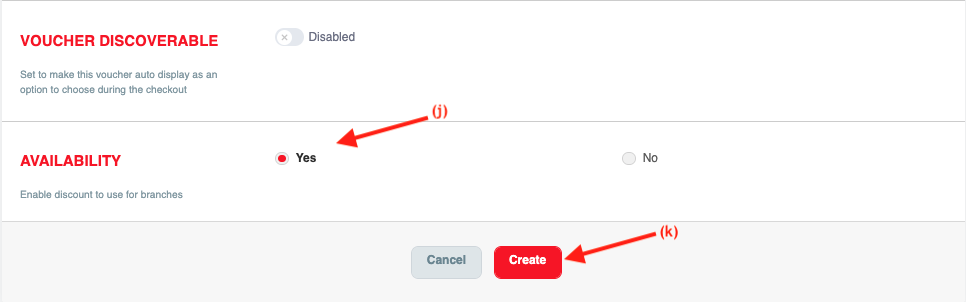
Availability: select the applicable outlets (j). With one branch you see Yes and No; with several branches you tick each store that should accept the code, or select them all.
Once all necessary details have been entered, click Create to complete the setup and activate the discount (k). You return to All Promotions, where the new discount is listed. Click Cancel instead to leave without saving.
Need to stop a campaign early, or remove a code that was shared by mistake? See how to deactivate an e-voucher.
That is it. RM10OFF is live at the right branches, capped at 500 claims, one per customer, ready for tonight's post.
Use discounts to grow sales
A code is most useful when it has one clear job. The four plays below use only the settings described above. All figures in the examples are sample numbers to show the arithmetic, not results to expect; your own prices and baskets will differ.
Play 1: Sell a bundle
Goal: move customers from one item to a pairing you want to push, such as a pastry with a drink or a festive set.
Settings:
Type: Product, with the bundle items added under Specific products. If the bundle items already sit in their own category (for example a "Raya Sets" category), choose Category and tick that category instead.
Value: a fixed amount in RM, so the saving is easy to say in a post.
Minimum Requirements: Minimum quantity of items on selected items, set to the size of the bundle.
Active period for the length of the campaign, and Voucher Discoverable on, so the offer appears at checkout as soon as one bundle item is in the basket.
Example (sample figures)
Code BUNDLE4: RM5 off when the basket holds 4 or more of Kaya Puff (RM4.50) and Pandan Chiffon slice (RM8.00). A customer adds 2 Kaya Puffs (RM9.00) and 2 Pandan Chiffon slices (RM16.00). The selected items come to RM25.00, the code takes RM5.00 off, and the four items cost RM20.00.
What to watch: the minimum quantity counts any mix of the selected items. Four Kaya Puffs and no chiffon also qualify, because a code cannot insist on one of each.
If the bundle must be an exact combination, add it to the menu as one set item at the bundle price instead (see add a new item to your online menu), or group set items in their own category (see create a new menu category) and run a Category code on it.
Marketing tip
Put the bundle rule in the Promotion name (for example "RM5 off any 4 puffs or chiffon") so it reads clearly in the default promotion image, and send ad traffic straight to the bundle category with a direct category link.
Play 2: Reward bigger quantities (volume discount)
Goal: encourage office orders, party boxes and family buys of the same kind of item.
Settings:
Type: Category (for example your Donuts category) or Product.
Value: a percentage, with a Max. promotion value so a very large order stays within budget.
Minimum Requirements: Minimum quantity of items on selected categories (or selected items), set to the box size you want to sell.
For a second step, create a second code with a higher quantity and a higher percentage. A code has one threshold only, so tiers are separate codes, and the customer applies one of them per order.
Example (sample figures)
Donuts are RM3.50 each. Code DOZEN6: 10% off with at least 6 donuts, capped at RM10. Code DOZEN12: 15% off with at least 12 donuts, capped at RM15. A customer buying 6 donuts (RM21.00) saves RM2.10 and pays RM18.90. A customer buying 12 (RM42.00) can use DOZEN12, saves RM6.30 and pays RM35.70.
What to watch: the percentage applies to every selected item in the basket, not only the ones above the threshold. Both codes show at checkout once a donut is in the basket, and each voucher card shows its condition, such as Min. 6 items, so give each code a Promotion name that states the quantity.
If your offer is about total spend rather than quantity (an Order amount code has no quantity option), use the minimum spend play below instead.
CEO tip
Work out the cap before you publish: the largest box a customer could order, times the percentage, is the most one order can cost you. Set Max. promotion value at or below the amount you are comfortable giving on that order.
Play 3: Raise the average order value
Goal: nudge customers to add one more item, by setting a minimum spend a little above what they usually spend.
Settings:
Find your typical basket. In Web Admin, open your orders and click Download daily sales; the file has a Sub total column for each order. Look at a few normal days, not a festive peak. For more on exports, see viewing and exporting sales reports and order history.
Type: Order amount, Value in RM.
Minimum Requirements: Minimum order amount, set roughly one item above your typical basket.
Voucher Discoverable: Enabled, with Min. spent amount to show the voucher set below the minimum order amount, around your typical basket. Customers whose basket is close see the voucher with a line such as Spend RM12.00 more to enable this voucher.
Optional: a total usage limit and an end date, so the cost has a ceiling.
Example (sample figures)
Your daily sales files show most baskets around RM48. Code SPEND60: RM8 off with a minimum order amount of RM60, discoverable from RM40. A customer at RM48 sees that RM12.00 more unlocks the voucher, adds a cake slice and a drink to reach RM62.00, and the subtotal drops to RM54.00. Tax and other charges are worked out as usual.
For delivery, the same idea works as free delivery above a threshold: a Delivery code with an RM value at least as high as your highest delivery fee and a Minimum order amount (for example RM80). The discount never exceeds the actual fee on the order.
What to watch: the Discount code and Discount amount columns in the same daily sales download show which orders used the code and what it cost. If most orders with the code were already above the minimum before the campaign, the threshold is too low to change behaviour; raise it for the next run.
eCommerce savvy tip
The gap works best when one popular add-on closes it. If your best-selling drink is RM9, a minimum about RM10 above the typical basket asks for one more item, not a second meal.
Play 4: Bring customers back more often
Goal: turn a first order into a second one, or fill a quiet day.
Settings:
Type: Order amount, a modest RM value, and a Minimum order amount so the visit is worth it.
Usage per customer set to 1, so each customer gets one return visit from it. Customers must be signed in to use a code with a per-customer limit; otherwise they see Please sign in to use this voucher.
Active period: a short window (for example the two weeks after you hand out the code), or a single quiet day by setting the same start and end date. There is no weekday rule, so for "every Tuesday" create one code per Tuesday.
Order Type and Availability: limit it to the order type and branches that have spare capacity, for example Self pick-up at the branch that is quiet midweek.
Leave Voucher Discoverable off if the code is a thank-you for existing customers, and share it on a receipt card, in your social posts or in your customer messages.
Example (sample figures)
Code TUE1003: RM5 off with a minimum order amount of RM30, Self pick-up only, active on Tuesday 10 March only, once per customer. A customer orders RM34.00 for pick-up that Tuesday and the subtotal drops to RM29.00. Next week's code, TUE1703, runs on Tuesday 17 March.
What to watch: a code is not tied to one person, so a code shared on a receipt can be passed on; the per-customer limit and a total usage limit keep that in check. Use the daily sales download to compare the quiet day's orders with the same day in earlier weeks.
Customer service tip
Print the date and the minimum spend next to the code on the receipt card. Most "code not working" questions are a basket under the minimum or a visit outside the active date.
For rewards that should reach only your loyal customers, use a members-only discount linked to a Campfyre reward (Step 1), and see the Digital Wallet Membership Pass.
One job per code, a clear limit and an end date: every discount you run now has a reason and a ceiling.
If something goes wrong
"Please fill up all the required fields": one or more fields are missing. The fields in red tell you which.
"Name is required.": enter a Promotion name.
"Discount code is required.": type a code or click Generate code.
"Discount value is required." or "Discount value must be higher than 0": enter a value above zero.
"Discount value is not allow value higher than 100 if is discount by percentage": a percentage discount can be at most 100.
"Max discount value is required.": for a percentage discount, enter a Max. promotion value or tick Unlimited.
"Minimum amount is required.": you chose a minimum requirement but left the amount empty.
"Total discount quantity is required." or "Discount usage per customer is required.": you ticked a usage limit box without entering a number.
"Active range is required" or "Range is invalid, please select again.": pick the start and end dates again in Active period.
"Please select at least one order type.": tick at least one order type.
"Delivery discount can only apply to delivery type.": a Delivery discount covers delivery orders only.
"Specific categories are required." or "Specific products are required.": choose at least one category or product for those types.
"discoverable min spent amount is required.": enter a Min. spent amount to show the voucher, or disable Voucher Discoverable.
"The uploaded image is too large. Please reduce the size to less than 10MB and try again.": compress the promotional image.
"Please enter Campfyre reward ID": members-only discounts need the reward ID from Campfyre.
If you see "This discount code [RM10OFF] is already used. Please use a different code.": that code exists already. Choose another code or click Generate code.
A customer says the code does not work: the message they see tells you why.
"This discount code is not applicable for this branch." means the branch is not ticked under Availability.
"You have not met the minimum requirement to apply the discount code." means the basket is below your minimum.
"All available vouchers have been claimed." and "You have claimed this voucher previously" mean a usage limit was reached.
"Your discount code is invalid" or "Your discount code is no longer valid" usually means today is outside the active dates.
Mission accomplished: what you have achieved
- An offer that stops itself. The usage limit and end date close the campaign without anyone watching it.
- Margin protected. The minimum spend and maximum value keep the discount on the orders you wanted to grow.
- Only at the right branches. Branches you did not tick reject the code, so there is no surprise at the counter.
- Customers who find it. Discoverable and featured discounts reach people who never saw your post.
- A plan behind every code. Bundles, box sizes, a minimum spend above the usual basket and quiet-day codes each use settings you now know.
Next festive campaign, you already know the form: one type, a handful of rules, one click on Create.
Related
Last updated: 27 October 2026