The story
SituationA regular is at your counter with a coffee and a cookie, ready to collect stamps, but she has deleted your loyalty app to free up space on her phone.
ChallengeThe queue is growing, she does not want to reinstall anything, and without her membership card she misses her stamp.
MissionPut her membership card in her phone's Apple Wallet or Google Wallet, so it is one swipe away next time, with no app needed.
This guide explains what the Digital Wallet Membership Pass does, the four ways customers can add it, what the pass shows, and how to help when something does not update.
Quick answer
Customers add the pass from any of four places: the Add Membership Pass to Wallet link in the user menu of your online ordering site, the Membership section of the Order Confirmed page, the Add Membership Pass to Your Wallet section of the receipt email, or Add to Wallet in your brand loyalty app.
They tap Add to Apple Wallet or Add to Google Wallet, then Add.
Purpose
This guide provides Eats Venture support agents and brand merchants with operational instructions, feature breakdowns, and step-by-step procedures to manage, explain, and troubleshoot the Digital Wallet Membership Pass feature (Apple Wallet & Google Wallet).
Scope
Applies to all Campfyre loyalty merchant storefronts (online ordering sites), post-purchase order status pages, order confirmation receipt emails, and integrated brand loyalty mobile apps (iOS & Android).
Note
The wallet pass entry points only appear on brands where the Campfyre loyalty programme and the wallet pass are switched on. If your customers do not see them, ask your Eats Venture account manager.
Before you start: pre-requisite checks
Before assisting a customer or testing wallet pass features, verify the following:
The customer has an active registered account with the merchant brand, and is logged in. Tapping an Add to Wallet button while logged out opens the login box first.
iOS Users: The native Apple Wallet app is installed on the device.
Android Users: The Google Wallet app is installed and signed into an active Google account.
Device Settings: Internet connectivity, Push Notifications, and Location Services are enabled on the mobile device.
1. Wallet features overview
The Digital Wallet Pass enables brand merchants to deliver a friction-free loyalty experience directly on customers' mobile devices without requiring a standalone mobile app installation.
Instant Wallet Access: Access the digital membership pass directly from the native device Wallet without opening a separate loyalty mobile app, while presenting a dynamic QR code at checkout to reliably collect points and redeem rewards.
Real-Time Dynamic Updates: Displays live member tier status, points/stamps balances, active reward counts, and primary Member ID (Phone/Email) dynamically on the pass.
Real-Time Push Notifications: Automatic lock-screen alerts sent for point accruals/deductions, completed stamp cycles, claimed rewards, and tier upgrades.
Geofenced Store Alerts: Triggers a non-dismissible lock-screen notification when a member is physically near a brand outlet's geofence, allowing quick card scanning at checkout.
Direct App Launcher & Links: Features embedded links on the back of the pass and a 1-tap launcher icon at the bottom-left corner to launch the brand's native mobile app or redirect to the App Store/Play Store if uninstalled.
Customers see the same promise on the Your Membership Pass is Ready page: Instant Access, Real-Time Update, Never Miss a Reward and Convenient Reminders.
Marketing tip
Members who have the pass get a lock-screen reminder near your outlet and a nudge each time they earn. Mention the pass on your counter signage and in social posts about your loyalty programme, so more members carry it.
2. Action steps: how to add the wallet pass
Merchants can direct customers to add their digital membership card using any of the four supported entry points below. On an iPhone the page shows only Add to Apple Wallet, on Android only Add to Google Wallet, and on a computer both.
Option A: Add via online ordering site user menu (web browser)
Log in to the merchant's online ordering web portal.
Tap the User Menu icon in the top-right corner.
Click on Add Membership Pass to Wallet.

On the Membership Pass landing page (Your Membership Pass is Ready), scroll to the bottom and click Add to Apple Wallet or Add to Google Wallet.
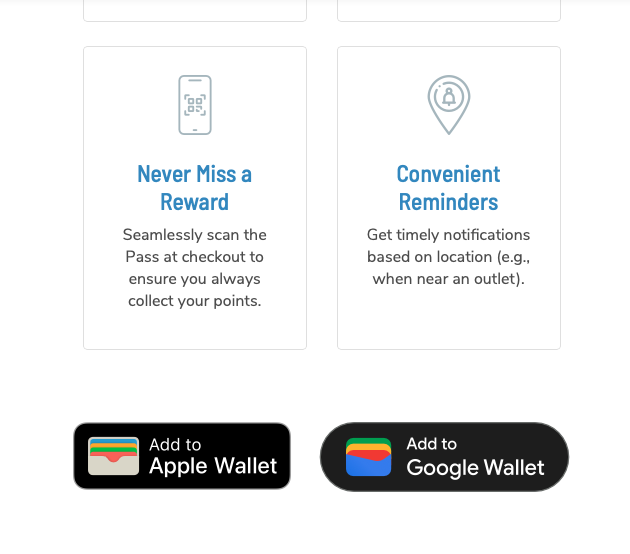
The system will open the browser and trigger the native OS wallet setup pop-up:
iOS: Verify your membership details on the card preview and tap Add in the top-right corner.
Android: You will be redirected to
pay.google.com/ Google Wallet prompt; tap Add to confirm.
Verification: Open the native Apple Wallet or Google Wallet app and confirm the new membership card appears.
Option B: Add via order confirmation page (post-purchase)
Place and complete an order on the online ordering site.
On the Order Confirmed status page, scroll down to the Membership section.
Click on Add to Apple Wallet or Add to Google Wallet.
Verify the details on the native OS pop-up and tap Add.

Verification: Open your device's native Wallet app to check that the card is present.
Option C: Add via order receipt email
Open the order confirmation/receipt email sent to your registered email address.
Scroll to the bottom section titled Add Membership Pass to Your Wallet.
Click the Add to Apple Wallet or Add to Google Wallet badge button.
Complete the native OS prompt by clicking Add.
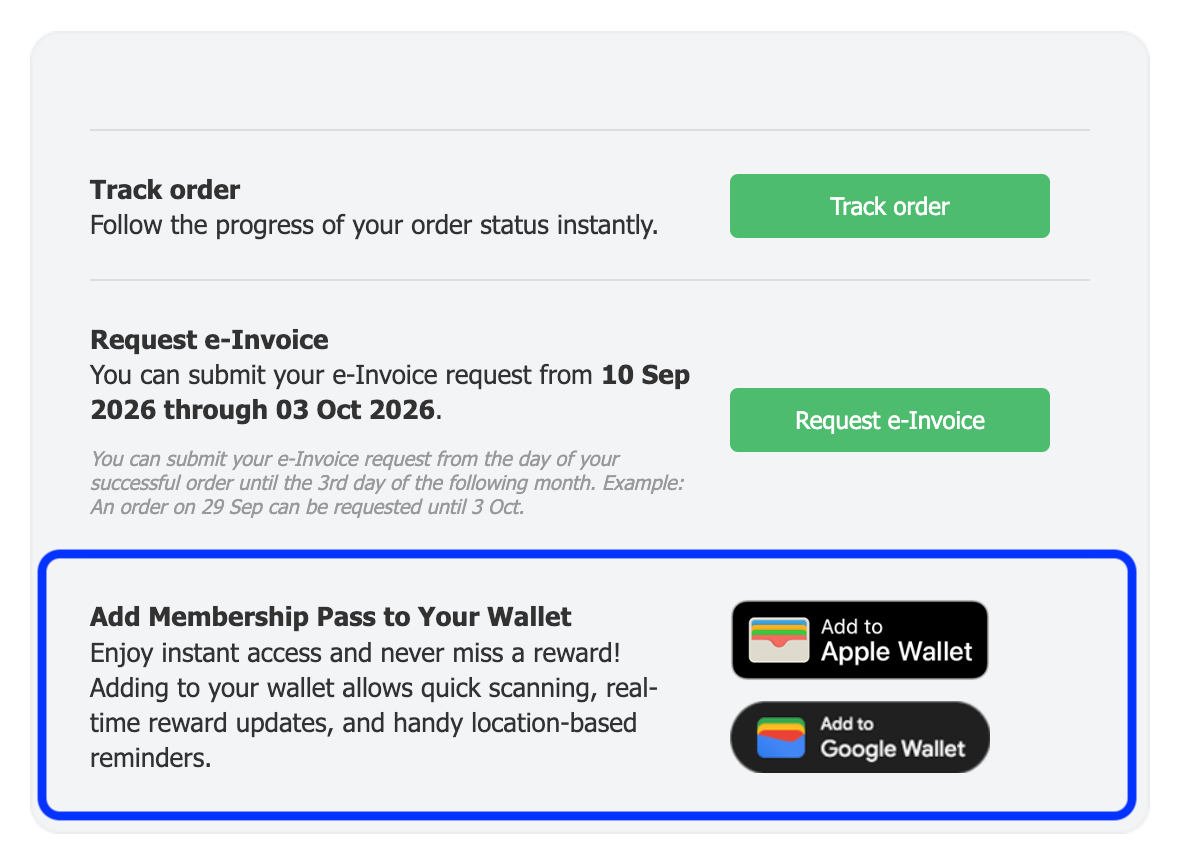
Verification: Open your mobile Wallet app to confirm the card installation.
Customer cannot find the receipt email? You can resend the order confirmation from Web Admin.
Note
The wallet buttons in an email are links that can expire. If a customer taps an old one, the site opens the Membership Pass page with the message "Your Add to Wallet link has expired. Tap the button below to add your pass with a fresh link." (or "That Add to Wallet link is no longer valid."). They tap the button on that page to continue.
Option D: Add via brand loyalty app (mobile app)
Open the brand's loyalty app (e.g., myBurgerLab+).
Navigate to My Account via the main navigation bar.
Scroll down and select Add to Wallet.
When the browser/OS prompt appears, verify your details and tap Add on the top-right corner.
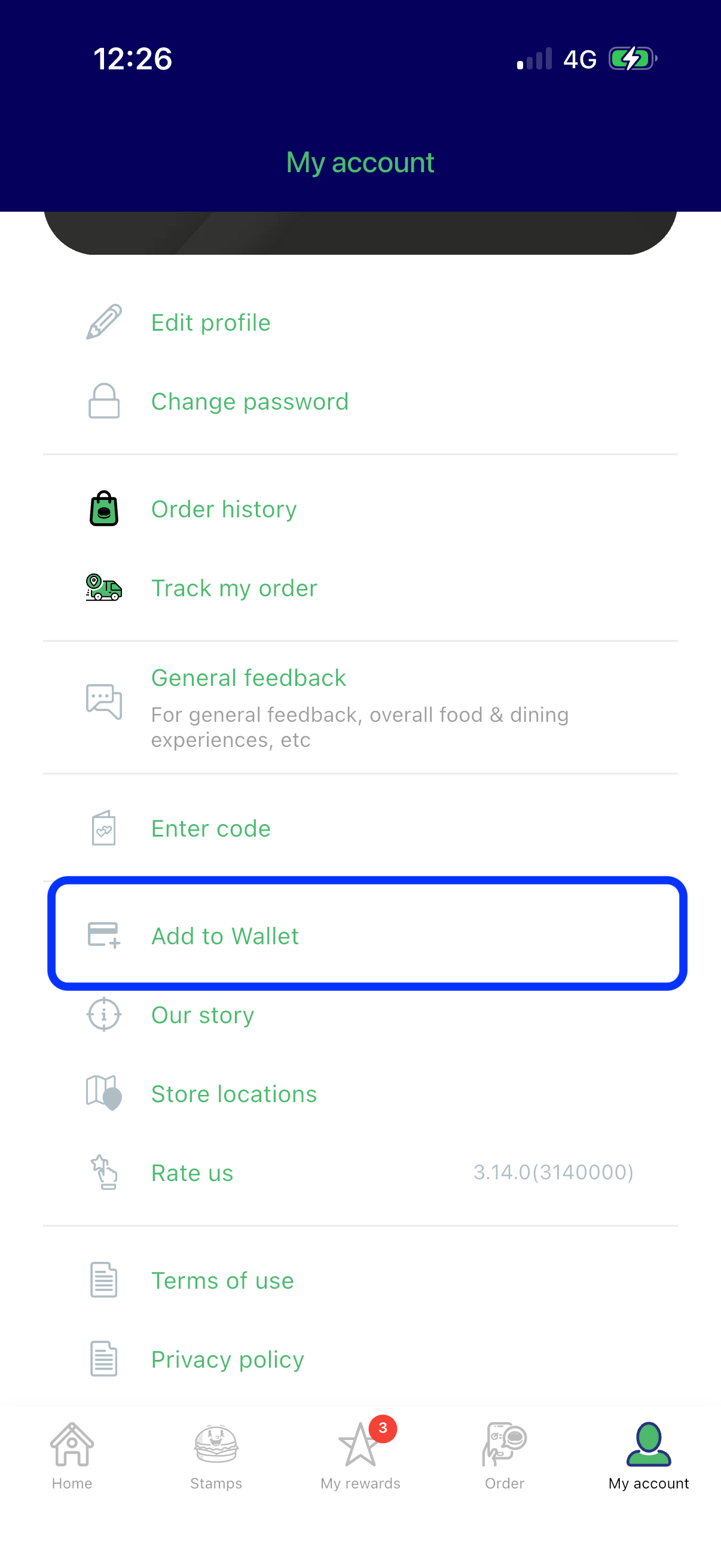
Verification: Open the device Wallet app to view the newly saved pass.
Whichever door the customer comes through, the card ends up in the same place: one swipe from the lock screen.
3. What members can view and do with the pass
Section | Feature / Field | Details |
|---|---|---|
Front Card | Brand Logo & Tier | Identifies the merchant program and current member status. |
Front Card | Stamps / Points Balance | Live tracker displaying current progress (e.g., |
Front Card | Member ID | Displays registered phone number or email address. |
Front Card | My Rewards | Indicates the total count of active, ready-to-use reward vouchers. |
Front Card | Dynamic QR Code | Scanned in-store at the POS for quick identification and point earning. |
Front Card | App Launcher Icon | Located at the bottom-left corner; opens the mobile app or routes to the App Store/Play Store. |
Back Card | (...) Menu > Pass Details | View extra pass details and access web links (e.g., terms, store locators, support). |
Customer service tip
When a member asks how many stamps they have, point them to the balance on the front of the pass. It updates on its own, so they do not need to log in anywhere to check.
4. Do's and don'ts
DO remind customers to keep Push Notifications enabled for Apple Wallet / Google Wallet to receive instant point updates.
DO note that lock-screen notifications from the Wallet app display the brand logo overlaid with a small Wallet icon, making them distinct from standard mobile app notifications.
DON'T advise customers to share screenshots of their Wallet QR code, as it contains unique account credentials linked to their mobile number.
DON'T delete or remove the native Wallet app if active loyalty tracking is required.
Caution
The QR code on the pass identifies the member's account. Staff should scan it from the customer's phone at the counter and never ask customers to send a screenshot of it.
Frequently asked questions
Q: Why isn't the wallet pass updating points automatically?
A: Check if the user has active internet connectivity and push notifications enabled for Apple Wallet / Google Wallet. If issues persist, issue a test point adjustment via the Campfyre Admin Portal to force a sync.
Q: How do store proximity alerts work?
A: When a member comes within range of a store's geofence coordinates, a non-dismissible notification appears on the lock screen. It automatically dismisses when the user exits the area. Device Location Services must be set to "While Using" or "Always."
Q: Can a user install the pass on multiple devices?
A: Yes. Logging into their member account on another device and clicking any "Add to Wallet" entry point will issue a pass compatible with that device's OS.
If something goes wrong
"Unable to add pass. Please try again.": the site could not get a pass for the customer. Ask them to try again in a moment; if it keeps failing, check their membership in the Campfyre Admin Portal.
The login box opens instead of the wallet: the customer is not logged in. They log in and tap the button again.
"Your Add to Wallet link has expired": the email link is old. Tap the button on the page that opens.
Points or stamps do not match: see the notes below.
Notes
Android installation routes through
pay.google.combefore saving to Google Wallet.For point/stamp sync issues, verify that the member account ID in the Campfyre Admin Portal matches the user's registered mobile number.
Mission accomplished: what you have achieved
- A card that is always there. Members carry your loyalty card in their phone's Wallet, with no app to install.
- No missed stamps at the counter. The QR code on the pass is scanned in seconds.
- Members reminded at the right moment. Updates and location alerts bring them back.
Next time a regular forgets their card, the answer is one tap on Add to Wallet.
Related
Create a discount code for your online store (including members-only discounts)
Last updated: 27 October 2026