The story
SituationYour Superfreeze Espresso promotion was meant for loyalty members only, but a screenshot of the voucher is now going round a public chat group.
ChallengeOrders are already coming in with it, the promotion still has weeks left to run, and you need it gone before the lunch rush.
MissionTake the e-voucher off your online store in under a minute, so nobody can apply it at checkout from now on.
This guide shows you where to find the voucher in Web Admin, how to delete it, and what changes for your customers once you do.
Quick answer
Go to Promotions > All Promotions, choose the e-voucher code from the list, then tap the Delete button at the bottom of the page and confirm with Yes, delete this.
Before you start
You are signed in to Web Admin as a brand admin. Only admin accounts see the Promotions menu and can delete a voucher.
You know the voucher's name or code, for example Superfreeze Espresso @ RM12.50.
You are sure you want it gone for good. Deleting cannot be undone.
Step 1: Open All Promotions
Go to (a) Promotions on the left panel and tap on (b) All Promotions.

Step 2: Find the e-voucher
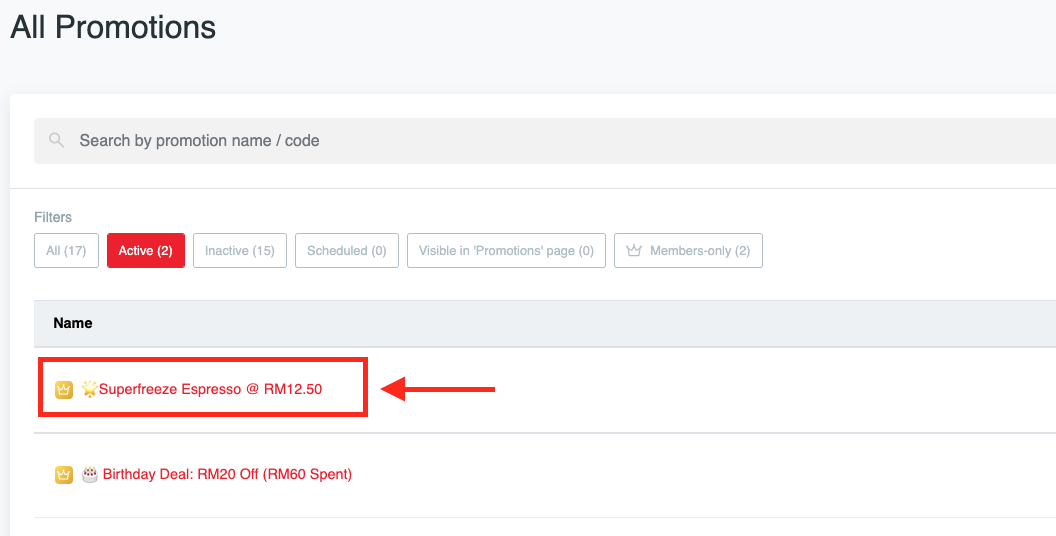
Choose an e-voucher code from the list. To find it faster:
Type part of the name or code into Search by promotion name / code.
Use the Filters: All, Active, Inactive, Scheduled, Visible in 'Promotions' page and, for brands on the Campfyre loyalty programme, Members-only. Each filter shows how many promotions it holds.
The list shows each promotion's Name, Value & type, Active period and Stock (how many claims are left, for a promotion with a usage limit). Members-only e-vouchers carry a crown icon and a View in Campfyre button instead of a stock count. Click the name to open it.
Step 3: Delete it
Scroll to the bottom of the promotion page and tap on the Delete button to proceed.
A box asks Are you sure? and warns You won't be able to revert this! Tap Yes, delete this, or Cancel to keep the voucher.
You see Discount removed. and return to All Promotions. The voucher is no longer in the list.

Done. The voucher is off your store, and the next customer who tries it at checkout will not get the discount.
Caution
Deleting is permanent. Orders that already used the voucher keep their discount; deleting only stops new orders from using it. If you might run the same offer again, note down its settings first, because you will need to create it from scratch.
Note
For a members-only e-voucher, deleting it in Web Admin removes it from your online store only. It does not change the reward in the Campfyre Admin Portal. Use View details in Campfyre on the promotion page to end or edit the reward there as well.
Prefer to end it on a date instead?
For a regular promo code (not members-only), you do not have to delete it. Open the promotion, change the end date in Active period (the same field you used to set up the discount code) and click Submit. The code stops working at 23:59 on the new end date and moves to the Inactive filter, where you can still see its details later.
Marketing tip
Ending a campaign by date keeps its name, value and rules in your list. Next season you can look back at exactly what you ran before setting up the new one.
If something goes wrong
There is no Promotions menu: your account is not a brand admin. Ask a brand admin on your team to delete the voucher, or to give you an admin login.
The voucher is not in the list: switch the filter to All and search by name or code. It may be under Scheduled or Inactive.
An error mentioning "Invalid discount": the voucher was already deleted, for example by a colleague. Refresh All Promotions.
An error mentioning "Invalid credential": your session has ended or your account is not an admin. Sign in again with an admin account.
If members still see the reward in their loyalty app: end the reward in the Campfyre Admin Portal too.
Mission accomplished: what you have achieved
- A leak closed fast. The voucher stops working on your online store as soon as you confirm.
- Past orders untouched. Customers who already paid keep the price they were charged.
- A clean promotions list. Only the offers you still want to run remain.
Next time a code escapes, you know the three taps that close it.
Related
Last updated: 27 October 2026