The story
SituationIt is 12.30pm and the last tray of butter croissants has gone. The almond topping ran out an hour ago too.
ChallengeOnline orders keep coming in for both, and every one you cannot make means a call, a refund and an unhappy customer.
MissionSwitch the croissant and the topping off from the counter in a few taps, and have them come back on their own tomorrow.
This guide shows you how to do it on the EatsVenture Cashier app, for a single item, a whole category or an add-on.
Quick answer
In the Cashier app, go to Settings and choose Categories & menu items availability or Add-ons availability. Tap the red switch next to the item or add-on to turn it off, choose how long it is sold out, and tap Confirm. A grey switch means it is off.
Before you start
You are logged in to the EatsVenture Cashier app with your store's cashier account. Changes apply to the store you are logged in to.
The item or add-on already exists on your menu. To add or edit items, use Web Admin; see Add a new item to your online menu.
Step 1: Open the availability screens
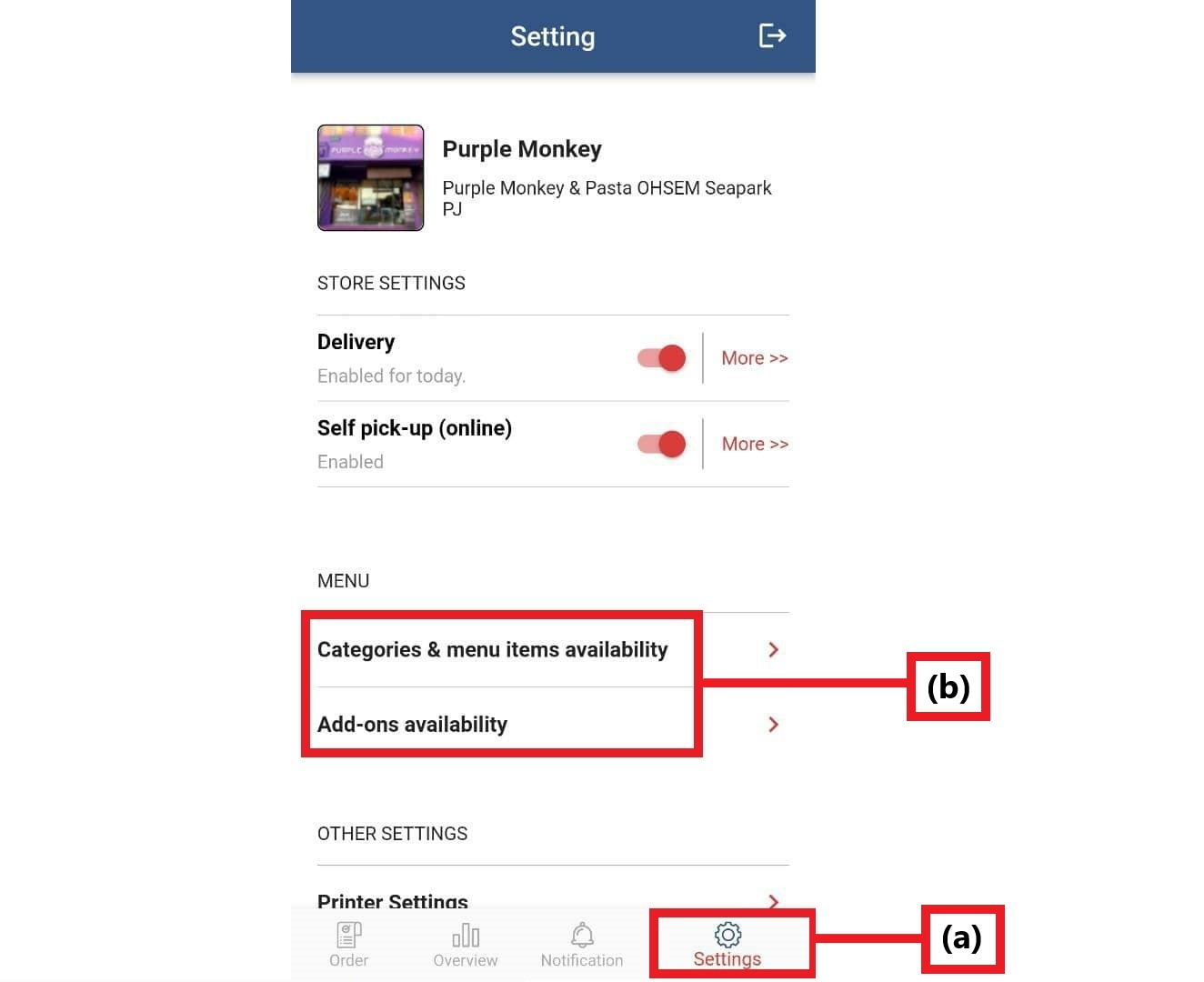
Go to Settings in the bottom bar of the app.
Under MENU, choose Categories & menu items availability or Add-ons availability.
Step 2: Turn off a menu item
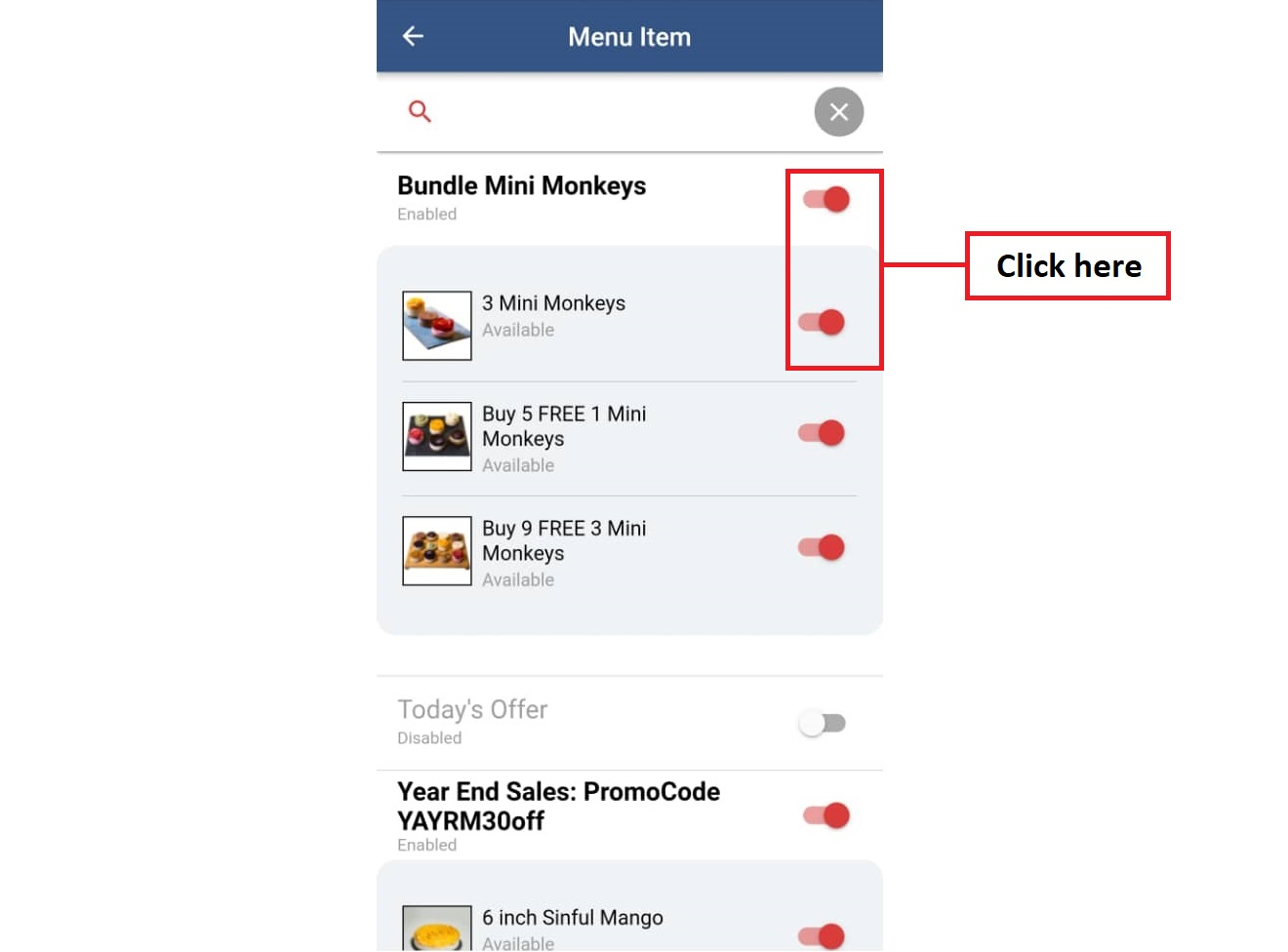
Categories & menu items availability opens the Menu Item screen. Each category is listed with its items, a photo, and a status line under each name: Available, Sold out or Sold out before a date. Use the search bar at the top to find an item by name.
Turn off the availability of a menu item by clicking on the red button (the switch) next to it.
In Mark item as sold out, choose one option:
Sold out for today: the item will be enabled automatically tomorrow.
Sold out before: tap select a date and pick the date the item should stay sold out until. Dates are shown in Malaysia time (GMT+8).
Tap Confirm. You see a message that the item is now sold out, and its switch turns grey.
To bring an item back early, tap its grey switch again. You see a message that the item is now available.
Note
If the item was sold out until a later date, the app asks you to Confirm Action: "Marking menu as available for today only. If you wish to mark the menu as available for future dates as well, please contact admin". Tap OK to continue or Cancel to leave it sold out.
Ops tip
Use Sold out for today for the everyday "last tray is gone" moment. Nobody has to remember to switch it back on before tomorrow's opening, because it comes back by itself.
Turn off a whole category
Each category has its own switch with Enabled or Disabled under its name. Turning a category off marks every item in it as sold out for today at your store, and you see a message that the category is now disabled. Turning it back on makes those items available again.
The croissant is sold out online before the next customer reaches checkout.
Step 3: Turn off an add-on
Add-ons availability opens the Add-ons list, with the same Available, Sold out or Sold out before status under each name.
Click the red button next to the add-on to turn off its availability.
Choose Sold out for today or Sold out before a date, and tap Confirm.
A grey button indicates the respective availability is turned off. Tap it again to make the add-on available.
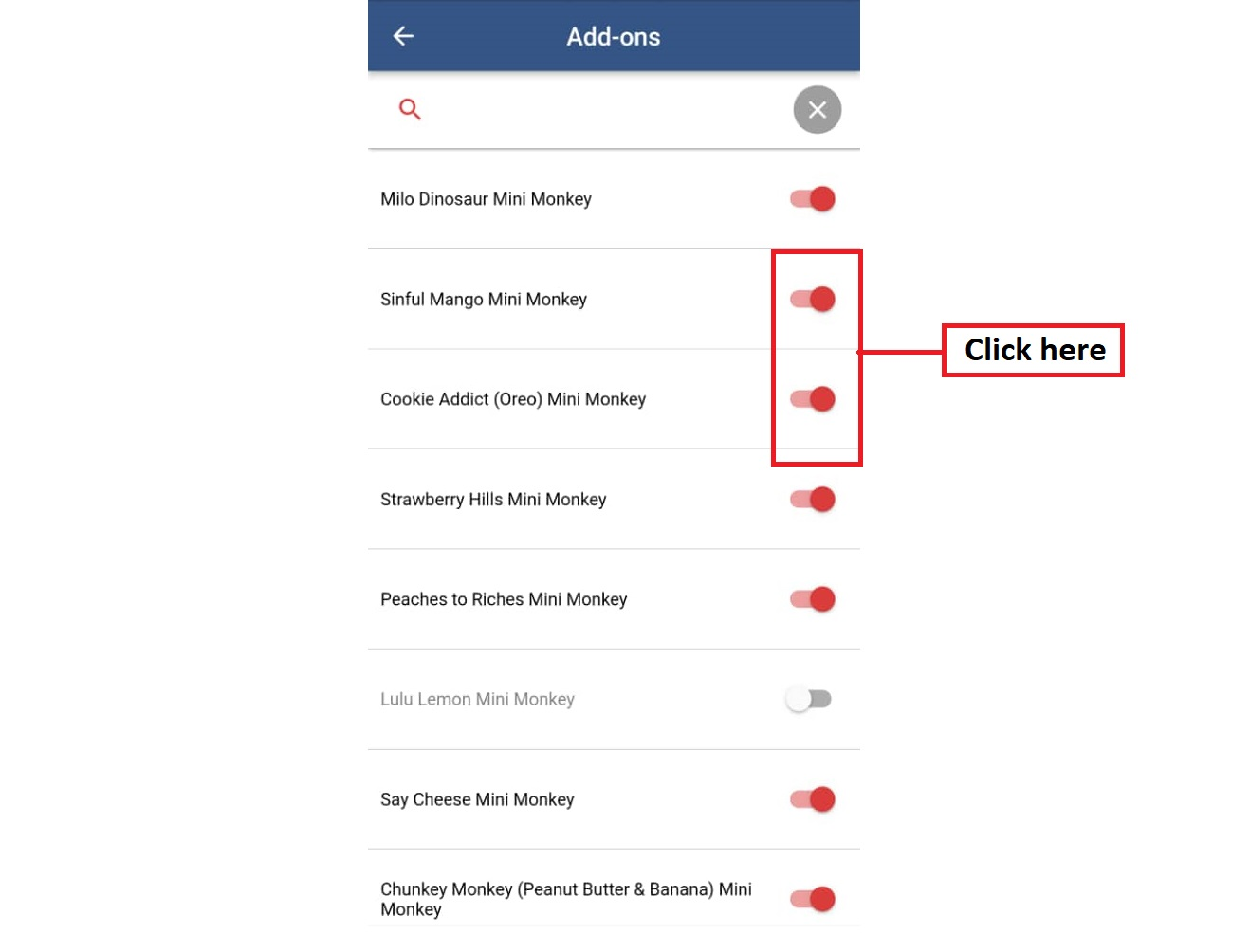
Tap an add-on's name to see the MENU ITEMS THAT HAVING THIS ADD-ON, so you know which dishes are affected before you switch it off.
Customer service tip
Out of a topping but not the dish? Switch off the add-on instead of the item. Customers can still order the croissant plain, and nobody pays for almonds you cannot add.
If something goes wrong
"Please select a date": you chose Sold out before without picking a date. Tap select a date first.
"Something went wrong, please try again.": the change did not save. Check the tablet's internet connection and try again.
The switch flips back by itself: the change was not accepted. Pull the list again by leaving and reopening the screen, then retry.
The date you picked was shortened: the app can limit how far ahead an item can be marked sold out. For a longer break, ask your admin to change the item's availability in Web Admin; see Managing Item Availability & Stock Limits.
Mission accomplished: what you have achieved
- No orders you cannot make. Sold-out items and add-ons can no longer be ordered online at your store.
- Back by itself tomorrow. Sold out for today resets automatically, so nothing stays hidden by mistake.
- Done from the counter. No need to find a computer or call the office mid-shift.
Next time the last tray goes, it is three taps from the counter.
Related
Last updated: 27 October 2026