The story
SituationIt is Saturday lunchtime. A delivery order for two chicken pies and a pickup order for a birthday cake arrive within a minute of each other.
ChallengeThe counter is busy, the kitchen needs the tickets, the delivery needs a rider at the right time, and the cake customer wants to know when to come.
MissionAccept both orders on the Cashier app, get them to the kitchen, and keep both customers informed without picking up the phone.
This guide walks through what to do on the EatsVenture Cashier app from the moment an order arrives until it is collected or delivered.
Quick answer
When a new order comes in, open Order > Now and tap the order number to see the full details. Tap Accept order, choose when it will be ready, and tap Accept order again. Print the receipt or kitchen ticket, then move the order through each step until it is complete.
Before you start
The Cashier app is installed on your store tablet or phone and logged in with your store's cashier account. See Download the EatsVenture Cashier app.
Notifications are allowed for the app and the device volume is on, so you hear new orders.
To print, a receipt or kitchen printer is set up under Settings > Printer Settings.
Step 1: Know when an order comes in
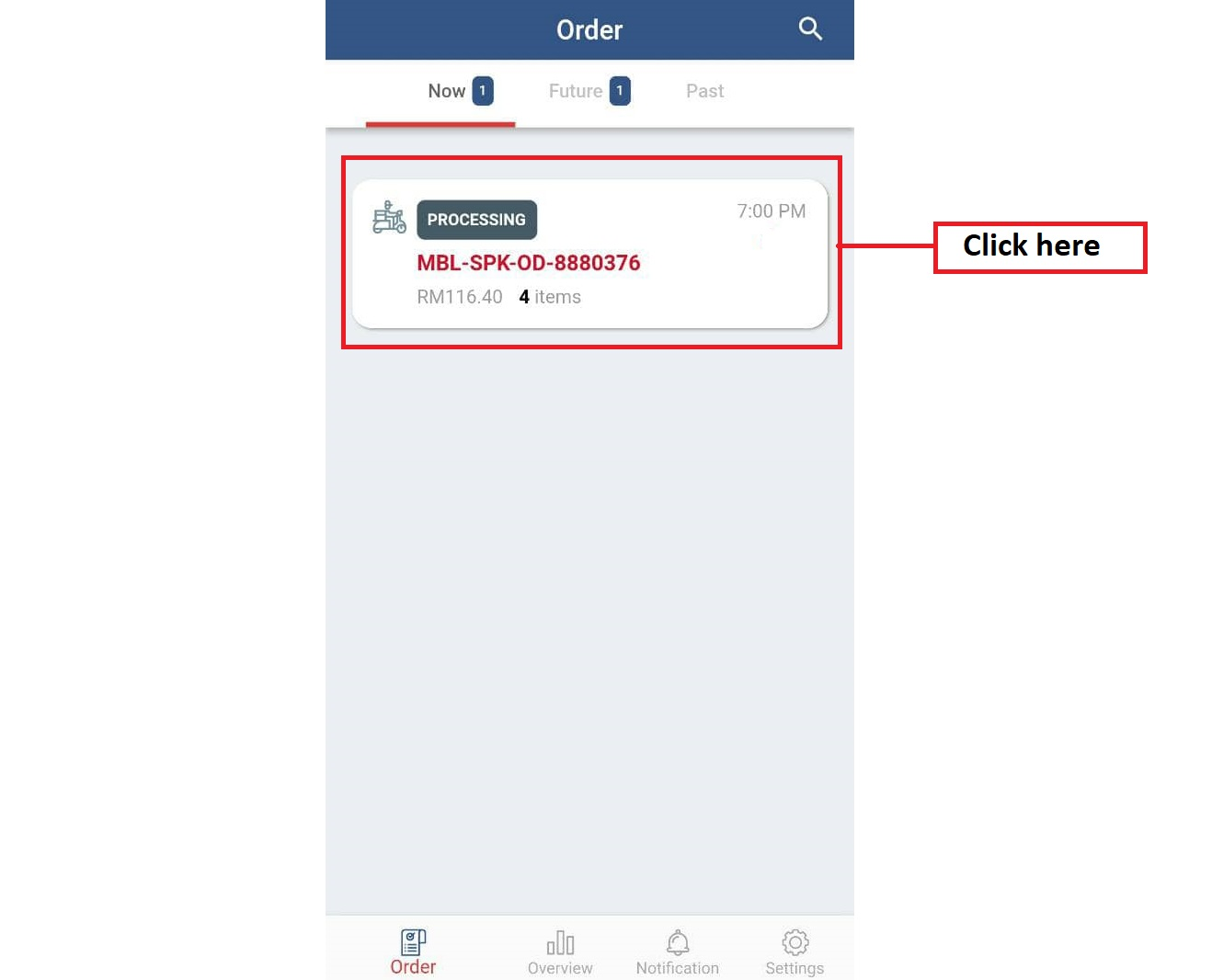
When a new order comes in, the app sounds a notification and the order appears in the Order tab. Please ensure your volume is on.
Now lists orders that need action today, including scheduled orders whose time slot starts within the next 30 minutes.
Future lists orders for later time slots. Each tab shows how many orders it holds.
Past lists finished orders.
The Cashier app gets a push notification when a new order is paid and, if auto print is turned on for your printer, that push is what prints the order. The push is sent only for orders to be fulfilled today; ASAP orders and dine-in orders are always pushed.
An advance order for a later date is not pushed, so it does not print days early, and it is not pushed on the day either: it never prints by itself, so print it from the order details when it is due. If the order is not accepted, reminders follow, as described below.
While any order due in the next 30 minutes is still waiting, the app sends an alarm notification about once a minute: "order(s) pending", "There are ... order(s) that require your attention".
Note
Earlier versions of the app had a New Order button that flashed when an order came in. The current app shows new orders in Order > Now with a sound and a push notification instead.
Step 2: Open the order
Click on the Order ID (the receipt number, for example KHB-0001) to get full order details: the items and add-ons, ORDER NOTES, CUTLERY, PAYMENT with the Transaction ID, the Time slot and, for delivery, the DELIVERY section.
Looking for an older order from a computer instead? See how to find an order with search and filters in Web Admin.
Step 3: Accept the order
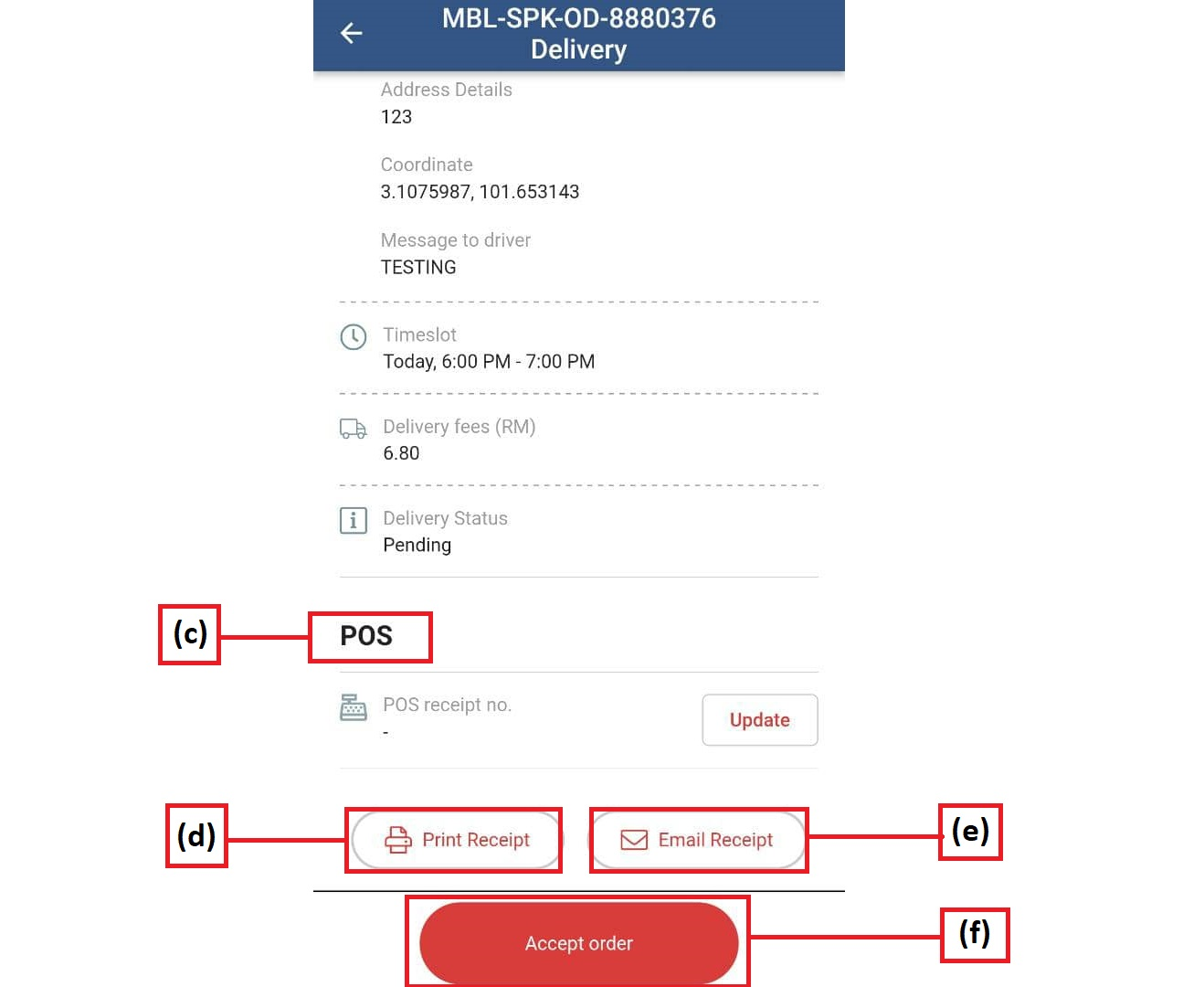
Tap the Accept order button at the bottom of the order details. A box asks you to Select the time when the order will be ready.
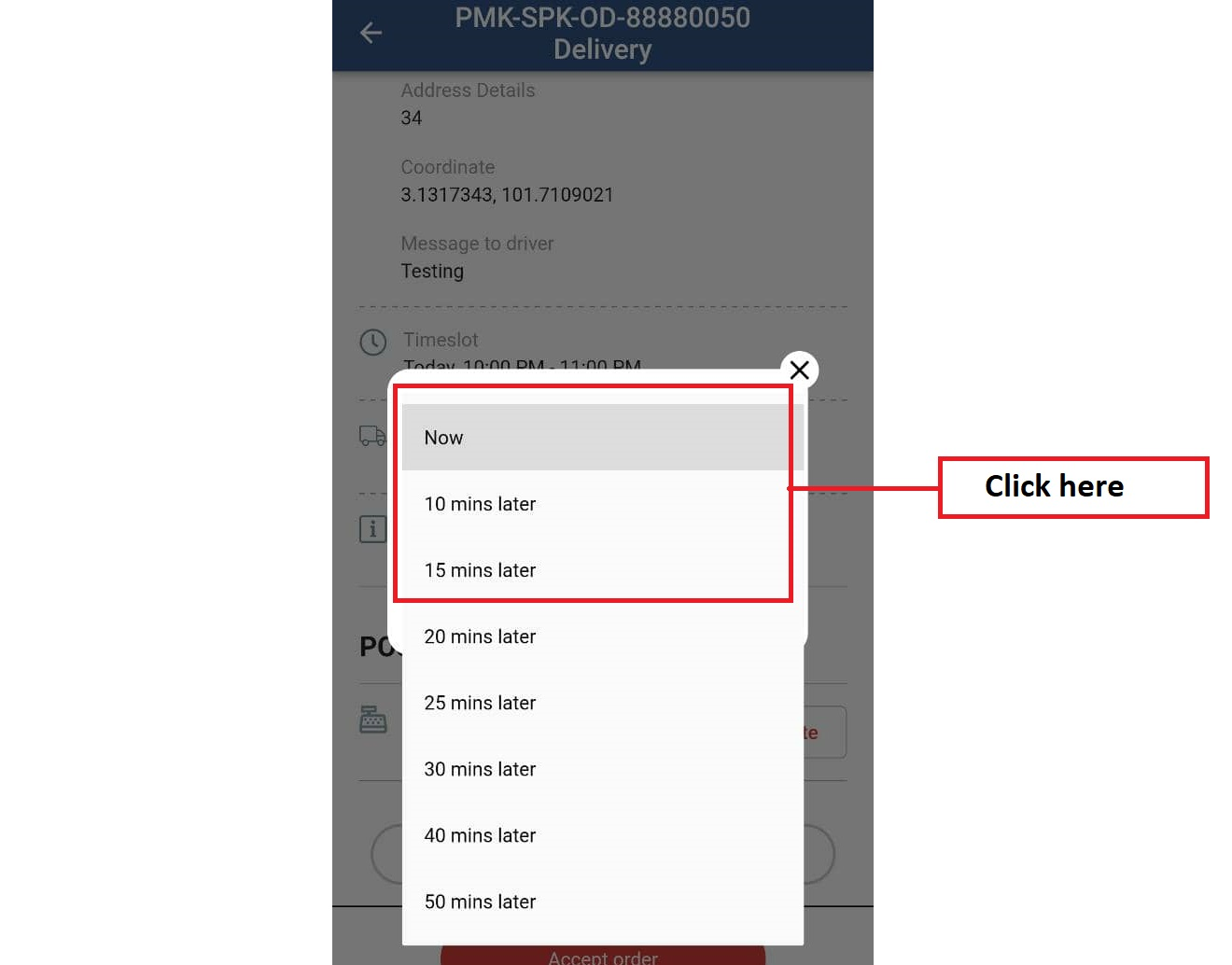
For delivery orders, choose when the order will be ready for delivery: Now or a number of minutes from now (10 to 50).
For an order scheduled for a later time slot you can also pick the slot's start time, or 30 minutes before it. This is when the rider is requested, so the delivery order can be scheduled for a specific time slot. Stores that do their own deliveries also see Own Delivery.
For self pick-up orders, choose when the order will be ready for pickup.
Your store's usual choice is selected for you. Tap Accept order to confirm.
Note
If the time you pick is not on the same day as the order's time slot, the app warns you: "The delivery time selected is NOT the same day as the order's fulfilment timeslot" (or pick-up time), and shows both dates so you can check before you confirm.
Step 4: Send it to the kitchen
Key in the order in your POS system and inform your kitchen to prepare the order. To keep both systems matched, tap Update POS Receipt no., enter the POS receipt no. and tap Save.
Get the order receipt printed: tap Print Receipt for the sales receipt or Print Kitchen Ticket for the kitchen.
When there's a request from a customer, tap on Email Receipt to resend the e-receipt confirmation to the customer's email. You see Email receipt send.
Note
If auto-print is set up, today's orders print automatically when they arrive. An order placed in advance for a later date does not print automatically, either when it arrives or on the day itself. Print it from the order with Print Receipt or Print Kitchen Ticket when you prepare it.
Ops tip
Check the Future tab at the start of each day and print tomorrow's advance orders, such as birthday cakes, before the shift that bakes them.
Step 5: Keep the customer informed
Self pick-up orders
For self pick-up orders, the order status ready for pick-up should be updated once the order is completed (this step is important to keep customers informed). After you accept, the button at the bottom moves to the next step each time you tap it: Preparing order, Ready for pickup, then Complete order.
Note
Older versions of this guide said to use the Accept order button for the ready-for-pick-up update.
In the current app, Accept order only accepts the order; the ready update is the Ready for pickup step. If your store updates pickup orders automatically, the order shows Order will update to "Ready for Pickup" at around the time you chose, and there is no button to tap.
Customer service tip
Customers see the status change on their order page. Marking an order ready as soon as it is packed saves the "is my cake ready?" call.
Delivery orders
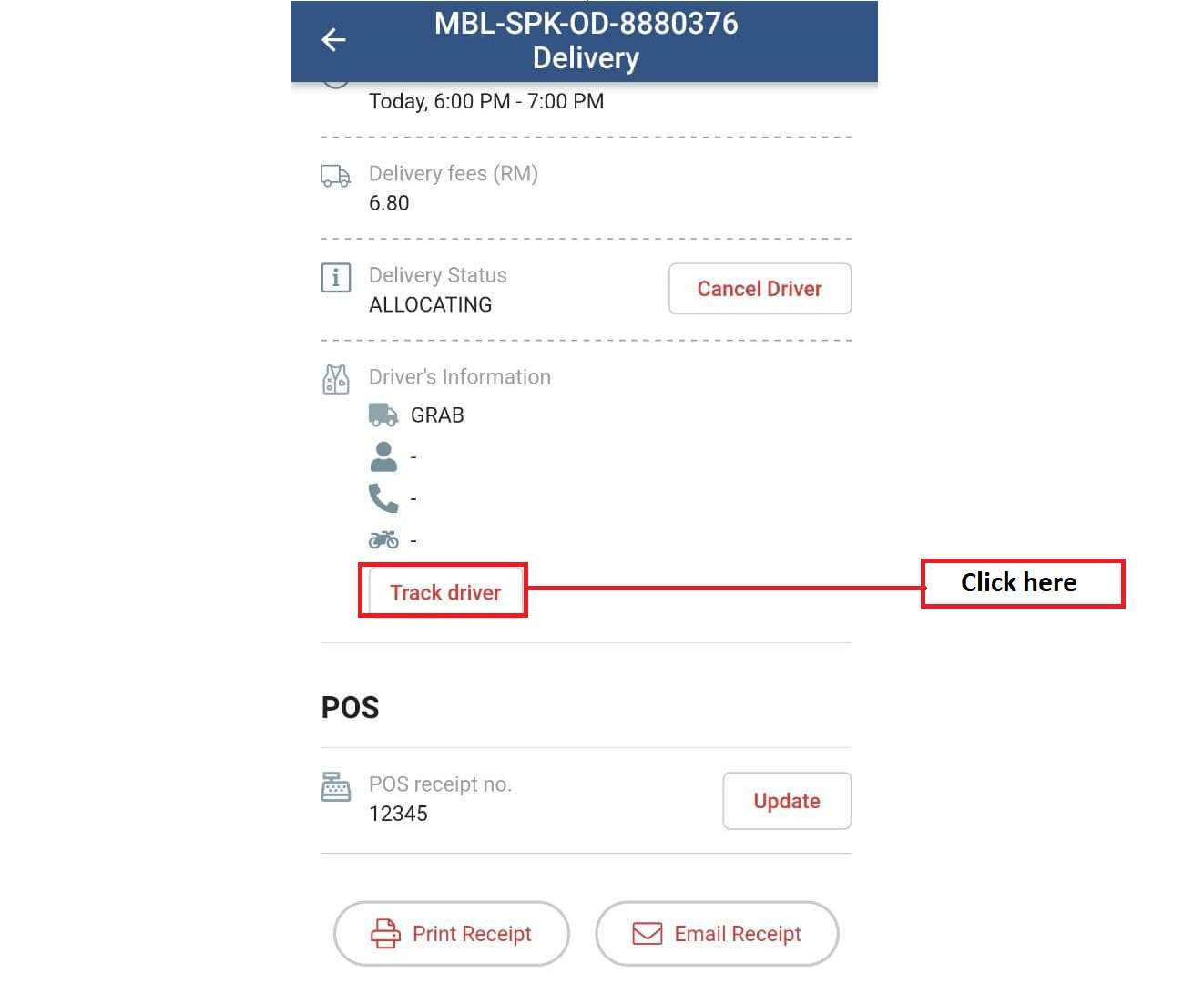
The rider for delivery orders can then be requested by clicking on the Accept order button, at the time you chose in Step 3. The Delivery Status shows the rider's progress, or Pending until a rider is found.
Once the rider has been assigned for delivery, you can check rider details under Driver's Information and track the rider by clicking the link Track driver.
For Own Delivery orders, the button at the bottom reads Complete Order; tap it once your own driver has delivered.
Both orders are accepted, ticketed and on their way, and both customers can see exactly where things stand.
If something goes wrong
No sound for new orders: turn the device volume up and check that notifications are allowed for the app.
"New orders may not appear. Check the internet connection.": the tablet has lost its connection. Reconnect to Wi-Fi or mobile data.
The delivery status shows failed, cancelled or returned: tap Request Driver to find a new rider.
"No printer found.", "No sales printer has been enabled. Please check the settings." or "No kitchen printer has been enabled. Please check the settings.": add or enable the printer under Settings > Printer Settings.
"Auto-print failed" or "Some orders did not print": check that the printer is on and connected, then tap Retry.
"An error occurred while updating the order. Please try again.": the status did not change. Check the connection and tap the button again.
Mission accomplished: what you have achieved
- No missed orders. Sound, push notifications and reminders keep pending orders in front of you.
- Riders at the right time. Choosing the ready time books the rider for when the food is packed, not before.
- Customers kept in the loop. Status updates and rider tracking answer the questions before they are asked.
Next rush, the routine is the same: open, accept, print, update.
Related
Last updated: 27 October 2026