The story
SituationYour accountant emails on a Monday morning: "Are we ready for e-Invoicing on our online orders? Customers are starting to ask for e-Invoices."
ChallengeYour bakery runs under two Sdn Bhd companies, nobody on the team has logged in to MyInvois before, and you are not sure what Shoppertise needs from you.
MissionAuthorise Shoppertise as your Intermediary in MyInvois for each company, send the activation form, and let customers request e-Invoices without your team lifting a finger.
This guide takes you through the three steps, from your MyInvois account to the activation form, with what to enter on each screen.
Quick answer
Log in to the MyInvois portal through the MyTax Portal, open View Taxpayer Profile, go to Representatives > Intermediaries and click Add Intermediary. Enter Shoppertise's TIN C22945449060, BRN 201301034266 and name SHOPPERTISE SDN. BHD., enable all permissions and confirm. Then fill in the E-Invoicing Activation Form. Repeat for each Sdn Bhd.
Overview
Shoppertise Eats Venture features a direct integration with the MyInvois platform hosted by the Inland Revenue Board of Malaysia (IRBM/LHDN). This allows your business to automate e-Invoice submissions and enables customers to request them seamlessly, ensuring full compliance with Malaysia’s digital tax requirements.
Please refer to this article on how e-invoicing works for your business on Shoppertise Eats Venture platform.
Before you start
You can log in to the MyTax Portal on behalf of the company.
You have the company's details ready for the activation form: MSIC code, TIN, BRN, the business name registered with SSM, business address, and a finance email address and phone number.
You have decided your go-live date for e-Invoicing on your online orders.
If you run several Sdn Bhd companies, you know which outlets belong to which company.
Step 1: Register your MyInvois Account
Every business must have an active MyInvois account. If you are already registered as a Taxpayer on the portal, please skip to Step 2: Add Shoppertise as Your Intermediary.
Visit the MyTax Portal.
Log in using your User Identification Type and number.
Navigate to the MyInvois link and complete the initial profile setup.

On the MyTax login page, choose your ID type from Please choose ID Type, enter your number in New Identification No. and click Submit.
Step 2: Add Shoppertise as Your Intermediary
To automate your invoicing, you must authorize Shoppertise to act as your "Intermediary" within the IRBM system.
1. Access Profile: Click your profile dropdown (top-right) and select "View Taxpayer Profile".

Note
If you manage more than one company in MyInvois, use Switch Taxpayer in the same dropdown to make sure you are working on the right company before you continue.
2. Navigate to Intermediaries: Scroll down to the Representatives section and select the "Intermediaries" tab.

The Representatives section has three tabs, User, ERP and Intermediaries, and two buttons at the top right, Register ERP and Add Intermediary. The intermediaries table lists Name, TIN, BRN, Representation From, Is Foreign Company, Is Peppol Supported and Status. Before you add Shoppertise it shows "No records to show".
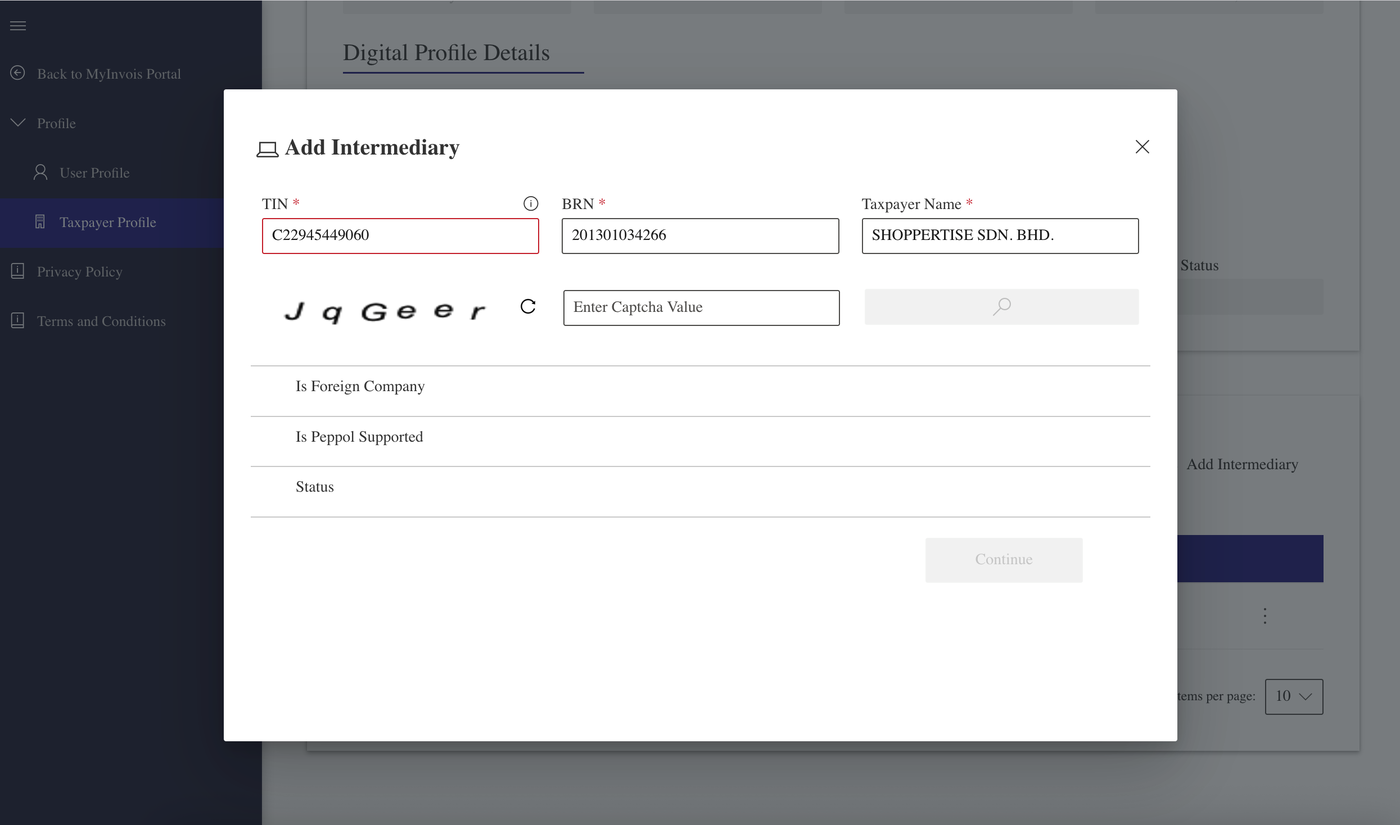
3. Add New Intermediary: Click Add Intermediary and enter these Shoppertise credentials:

TIN (Tax Identification Number): C22945449060
BRN (Business Registration Number): 201301034266
Taxpayer Name: SHOPPERTISE SDN. BHD.
Caution
Copy the TIN, BRN and Taxpayer Name exactly as shown above, including the full stops in SHOPPERTISE SDN. BHD. A typo can stop the search from finding Shoppertise.
4. Validate & Set Dates: Click the Search icon to verify the info.
The dialog also asks for the captcha shown on screen: type it into Enter Captcha Value, then click the search icon. When the details are verified, the Is Foreign Company, Is Peppol Supported and Status rows fill in and you can click Continue.
5. Set the "Representation From" date to today.
6. Leave "Representation To" blank.

Leaving Representation To blank keeps the authorisation in place with no end date, so submissions do not stop unexpectedly.
7. Permissions: Toggle all permissions to "Enabled" to allow for end-to-end automation.

The permissions are:
Document - View (Always enabled)
Document - Submit
Document - Cancel
Document - Request Rejection
Notifications - View
If you change a toggle by mistake, Reset all to default puts them back. Previous returns to the TIN and BRN page.
8. Confirm: Click "Add Intermediary". You should see a success message. To confirm, click on the "Intermediaries" tab to view the information you have added!

Shoppertise is now authorised to submit e-Invoices to IRBM for this company. One step left.
Step 3: Register your MyInvois Account (the E-Invoicing Activation Form)
Note
Despite its heading, this step is not a second MyInvois registration. It is the Eats Venture activation form, which tells Shoppertise the company details to use on your e-Invoices.
Once the portal authorization is complete, please fill out our E-Invoicing Activation Form. As a Merchant, you will need to provide:
MSIC Code (Your 5-digit Industry Classification)
TIN (Tax Identification Number)
BRN (Business Registration Number)
Business Registration Name (the one you registered for SSM)
Business Address (Malaysia)
Finance Email Address
Finance Phone Number
Go-Live Date: When you want e-Invoicing to be active for your online orders.
Eats Venture links each of your outlets to the details of the company that owns it: TIN, business registration number, registered name, MSIC code and address. Every e-Invoice for an order from that outlet is submitted under those details. See Can my customers request e-Invoices for all my store locations?
Ops tip
Before you go live, check the classification code on your menu items. Each item defaults to 022 - Others; change any that your tax declaration codes differently. See Setting Up Menu Item Tax Codes for e-Invoicing.
Note for Multiple Entities
If you operate multiple Sdn Bhd companies, IRBM treats them as separate taxpayers. You must repeat the registration and authorization process for each individual business entity.
CEO tip
List your outlets against the company that owns each one before you start. Completing all companies before your go-live date means customers at every outlet can request e-Invoices from day one.
Need Technical Support?
If you encounter any issues during the setup, please contact our support team via WhatsApp or email at support@eatsventure.asia.
If something goes wrong
The search does not find Shoppertise. Check the TIN, BRN and Taxpayer Name against Step 2, including the full stops in SHOPPERTISE SDN. BHD., and re-enter the captcha.
I cannot see Add Intermediary. Check that you opened View Taxpayer Profile for the company, not View my Profile, and that you are logged in to the right taxpayer.
Shoppertise does not appear in the Intermediaries tab. The last step may not have completed. Repeat Step 2 and wait for the success message.
Anything else. Contact support@eatsventure.asia with the company name and a screenshot of the screen you are on.
Caution
The MyInvois screens belong to IRBM and can change without notice. If a screen looks different from the screenshots here, follow the MyInvois portal and contact our support team if you are unsure.
Mission accomplished: what you have achieved
- Shoppertise authorised in MyInvois. Each company has Shoppertise as its Intermediary, with the permissions needed to submit on its behalf.
- Activation details sent. Shoppertise has the company details and go-live date it needs for your e-Invoices.
- A clear answer for your accountant. You know e-Invoicing is set up for each Sdn Bhd, not only one.
When you open an outlet under a new company, you already know the drill: the same three steps for that company.
Related
How does e-Invoicing work for my business on Shoppertise Eats Venture platform?
Can my customers request e-Invoices for all my store locations?
Last updated: 27 October 2026