The story
SituationYour Eats Venture online store goes live on Monday. The onboarding email has arrived, and your outlet manager needs to be able to see orders from the first morning.
ChallengeThere is a new link, a new password, and a busy launch week ahead. Nobody wants to be locked out when the first order comes in.
MissionSign in to the admin portal, set a password only you know, and know what to do if you ever get locked out.
This guide covers signing in to Web Admin (the Eats Venture admin portal) for the first time, changing your password, and signing out.
Quick answer
Open the Admin Order site link from your merchant onboarding email, enter the Email and Password the Shoppertise Eats Venture team set up for you, and click Continue.
Before you start
Find your Merchant onboarding email from the Shoppertise Eats Venture team. It contains the Admin Order site link and your sign-in details.
Use a recent version of Chrome, Safari, Edge or Firefox on a computer or tablet. The order screen plays an alert sound, so a device that stays at the counter works best.
Sign in
Access the portal using the Admin Order site link provided in your Merchant onboarding email. The address ends in
/_admin. Bookmark it so you can find it again quickly.Log in with the Email and Password set up by the Shoppertise Eats Venture team. These credentials will be included in your onboarding email.
The sign-in page says Welcome back and Please log in to continue. Type your email in Email (placeholder Email address) and your password in Password (placeholder Enter password here), then click Continue. The button shows Processing while it checks.
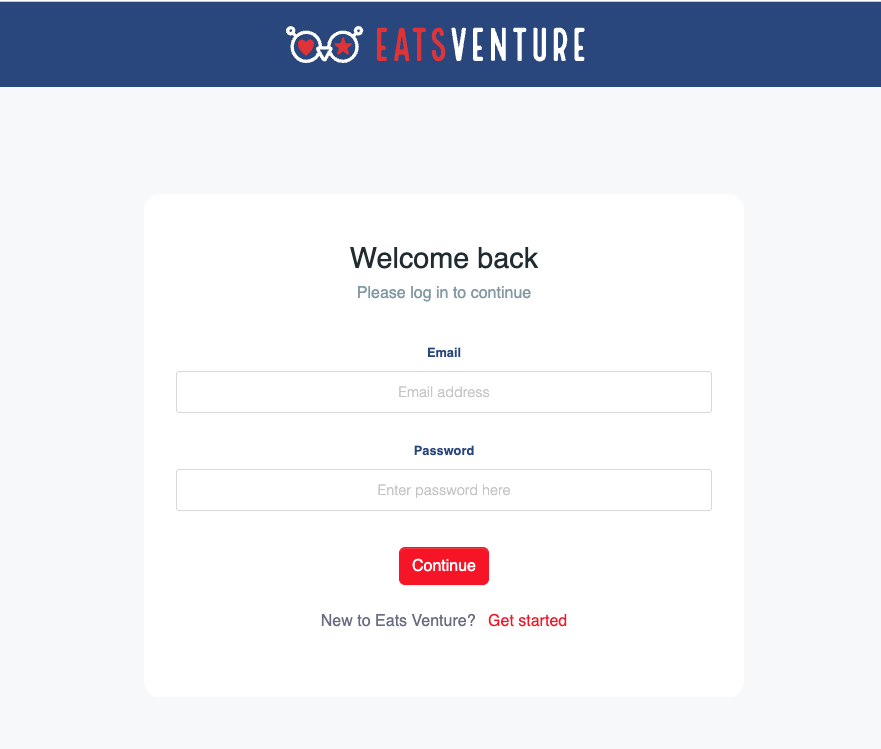
Once you are in, you land on the admin home page with the sidebar on the left: Dashboard, Orders, Menu, Settings and Support, plus Customers and Promotions for brand admins. See Guide to the Admin Portal for a tour.
Note
The New to Eats Venture? Get started link under the button is for businesses that are not yet on Eats Venture. You do not need it to sign in.
You are in. Orders, menu and store settings are a click away from the sidebar.
Change your password
Change the password from the onboarding email to one only you know.
Click your email address at the top right of any admin page, then click Change password.
In the Change Password box, enter your Current password, then your New password, then type it again in Confirm new password.
Click Change password.
The new password needs at least 6 characters, at least 1 uppercase letter and no spaces, using letters, numbers and symbols only. After a successful change you see Password changed: "Your password has been updated successfully. You have been logged out for security." You are taken back to the sign-in page, where you sign in with the new password.
CEO tip
Give each manager their own login instead of sharing one. You can then remove one person's access without changing everyone's password. See Give your team their own admin logins
Sign out
Click your email address at the top right, then Sign out. Sign out on shared or personal devices you no longer use for the store.
Caution
Keep the counter device signed in during opening hours if it is your order screen. A signed-out screen cannot alert you to new orders.
If something goes wrong
"Invalid username or password": check the email for typos and that Caps Lock is off, then try again. Copy the password from the onboarding email if you have not changed it yet.
You forgot your password: there is no self-service reset on the sign-in page. Ask a brand admin in your business to set a new one for you under Settings > All Admins, or contact the Eats Venture support team.
Errors when changing your password: the box tells you what to fix, for example "Current password is required.", "New password must be at least 6 characters.", "Password must not contain spaces.", "Password must contain at least one uppercase letter." or "New passwords do not match."
You cannot find the onboarding email: search your inbox and spam for Eats Venture or Shoppertise, or contact the support team for your Admin Order site link.
Mission accomplished: what you have achieved
- Ready for launch day. You can sign in and see orders from the first morning.
- A password only you know. The onboarding password is replaced with your own.
- A plan for lock-outs. You know who can reset your access, so a forgotten password does not stop service.
From here, everything in Web Admin starts with one bookmark.
Related
Last updated: 27 October 2026