1. Discontinuing Items Permanently (No Longer For Sale)
Use this method when an item is removed from your menu or is no longer offered at selected locations.
Go to Menu > All Items.
Click Edit on the item you want to modify (e.g.,
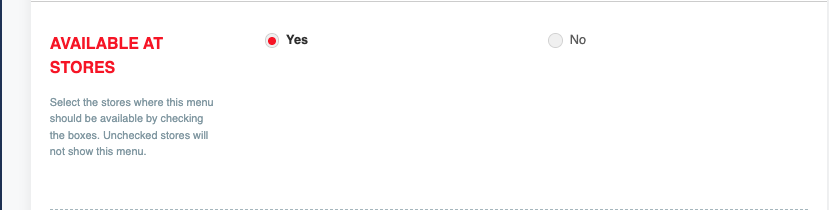
.../menu/edit/[item_id]).Scroll down to the AVAILABLE AT STORES section.
Toggle off or uncheck the specific stores where the item should no longer be sold.
Save your changes.
2. Managing Daily Stock Availability (Sold Out / Custom Inventory)
Use this method to manage day-to-day stock levels or temporarily mark an item as sold out for a specific date range.
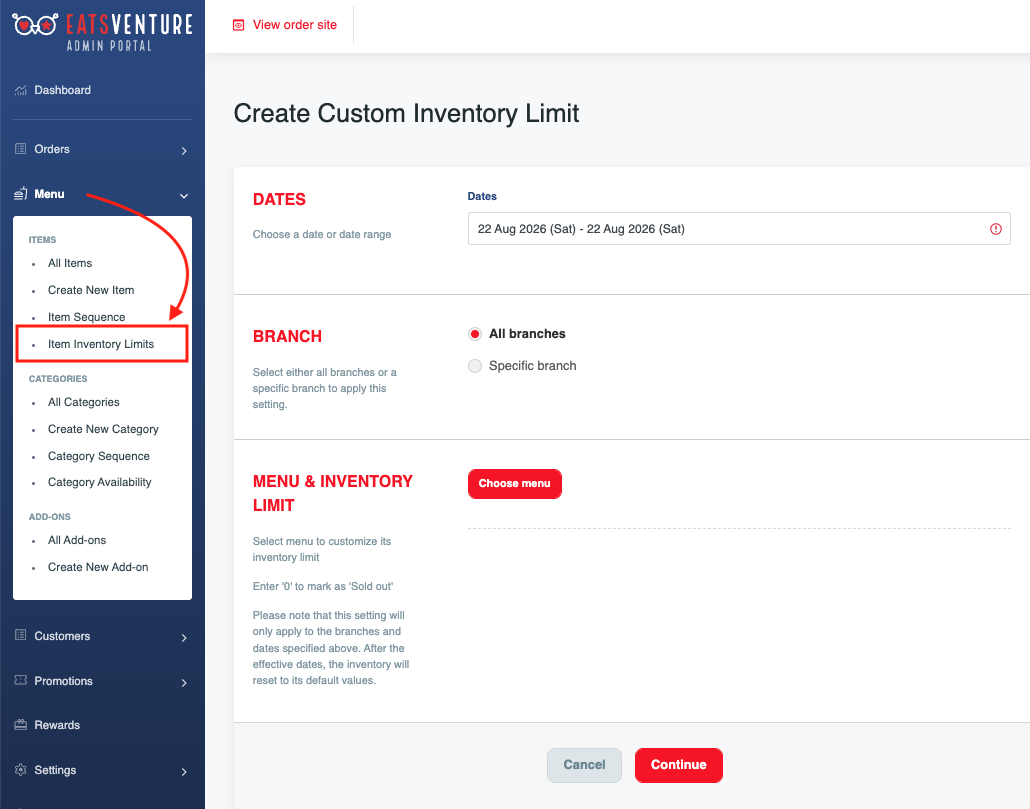
Navigate to Menu > Item Inventory Limits in the left sidebar.
Click Create Custom Inventory Limit.
Set Dates: Choose a specific date or date range for the stock limit to apply.
Select Branch: Choose All branches or select a Specific branch.
Set Inventory Limit: Click Choose menu, select your items, and enter the quantity available:
Enter
0to mark the item as 'Sold out'.Enter a specific number (e.g.,
10) to limit daily sales.
Click Continue to save.
Note: Custom inventory settings automatically reset to default values after the specified effective dates pass.