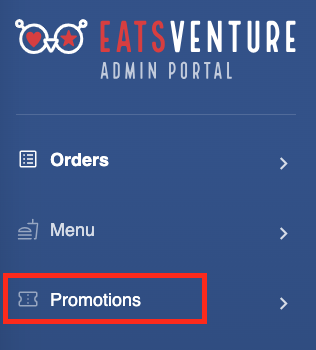
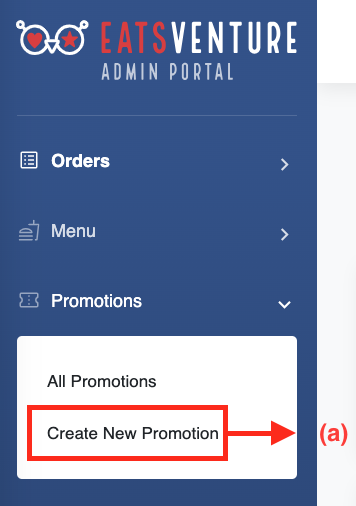
Go to 'Promotions' feature on left panel of the admin portal.
Click Create New Promotion
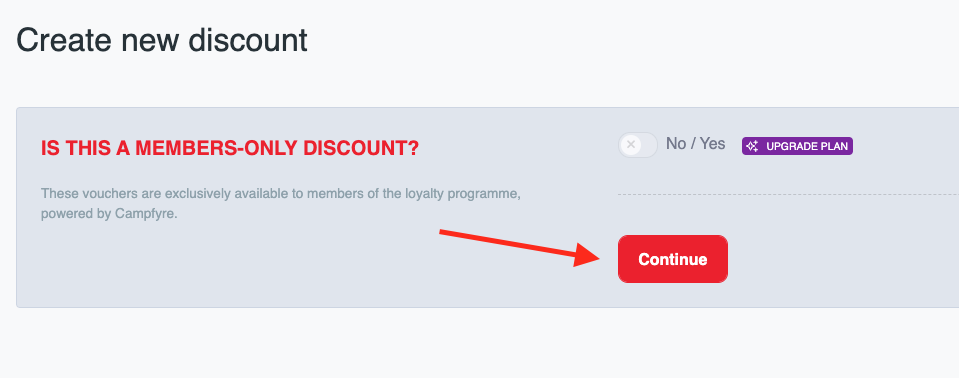
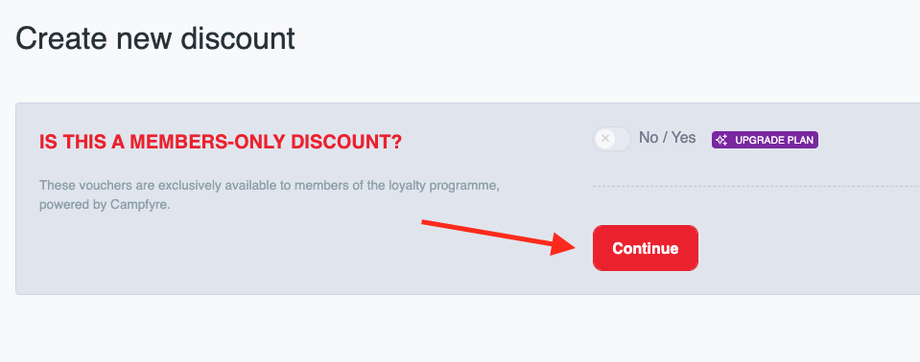
If this discount is for all customers. Tap on continue button.
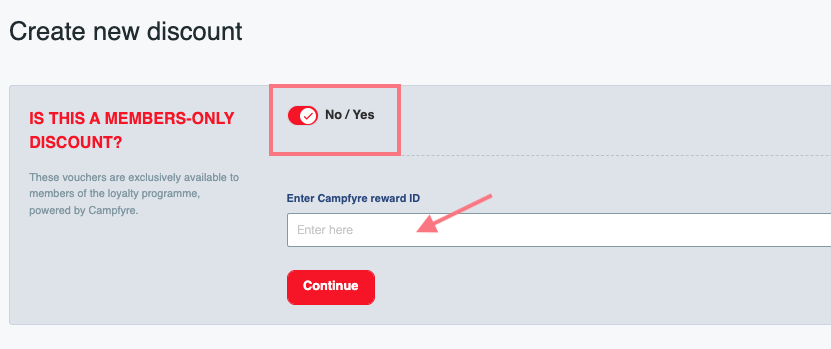
If you are creating a members-only discount, toggle checkbox to Yes.
Ensure that you have already set up the member's reward in the Campfyre Admin Portal and have the Campfyre reward ID ready.
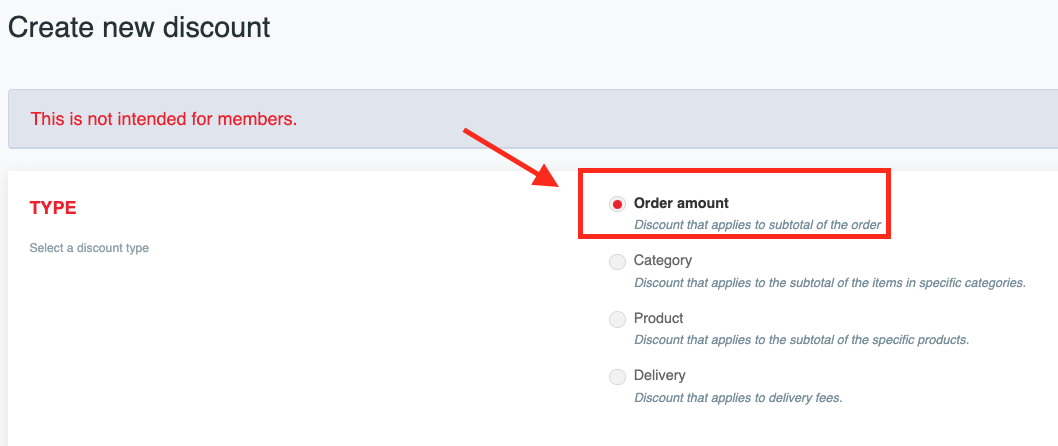
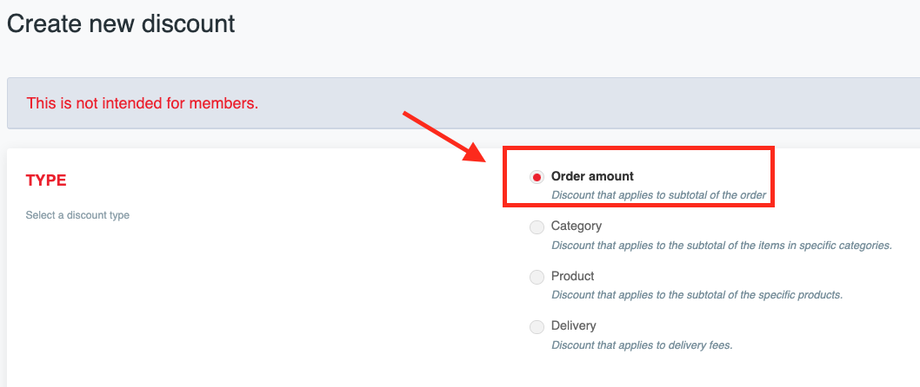
From the Type options, Select a discount type. For example: Order Amount
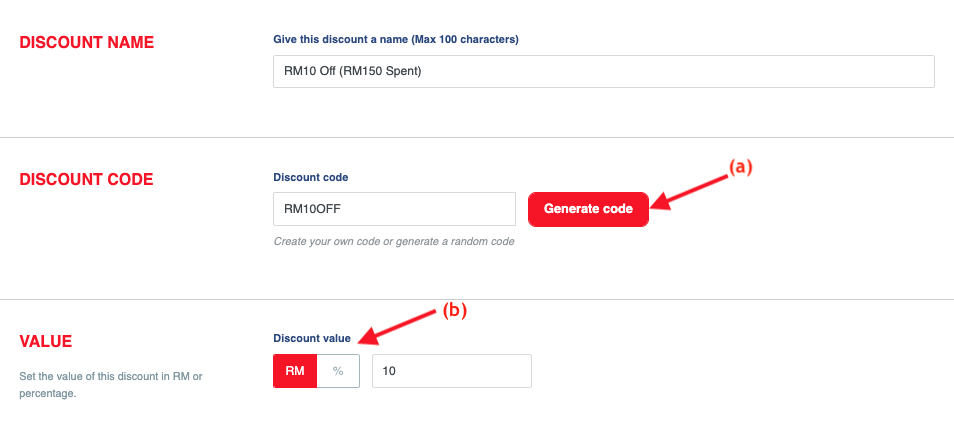
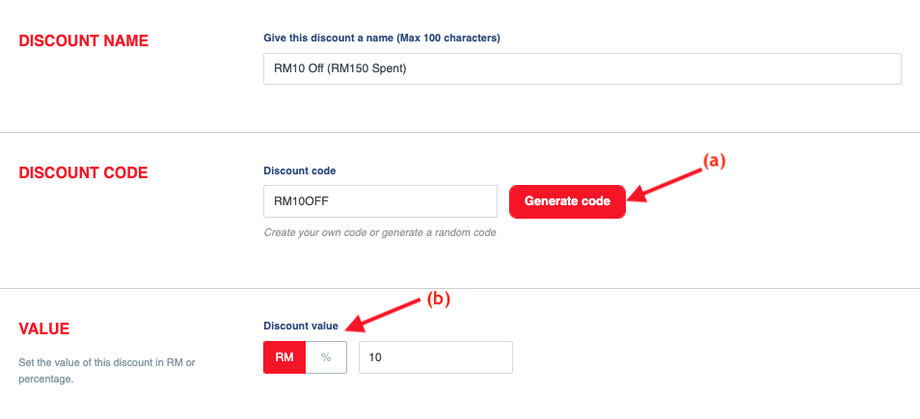
Discount Name (For Internal and Feature Use). Provide a unique name for tracking and reference. This text will appear in the default image template when the discount is featured publicly.
Discount Code - You can either create your own code or simply click the 'Generate Code' button (a). A random code will be created for you.
Value - The discount value can be in RM or percentage % (b)
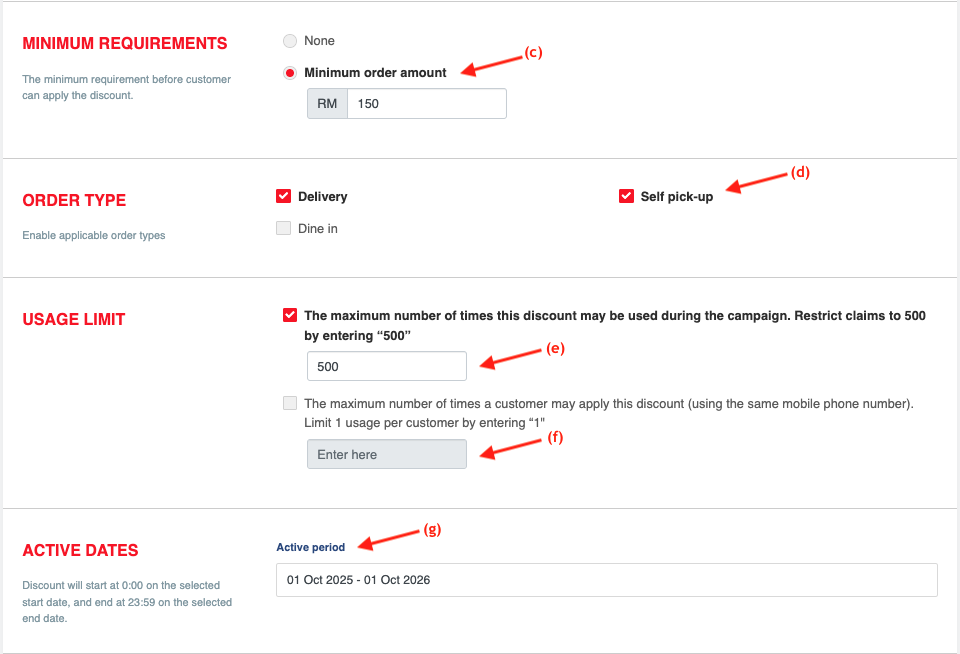
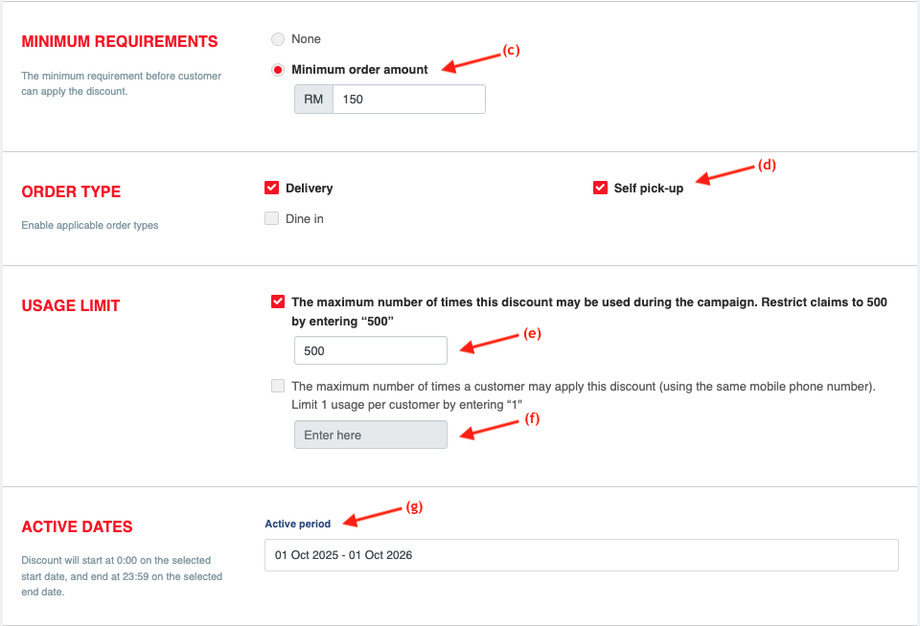
Minimum Requirements - Set the minimum requirement before customer can apply the discount. (c)
Order Type - Select the Order Type(s) this discount will apply to. (d)
Usage Limit - Define the total usage limit for this discount throughout the campaign duration. (e)
Set the maximum number of times a single customer (identified by mobile number) can apply this discount. (f)
Active Dates - Define the Start Date and End Date to set the total duration of the promotion. You can schedule the campaign to launch automatically at a future date. (g)
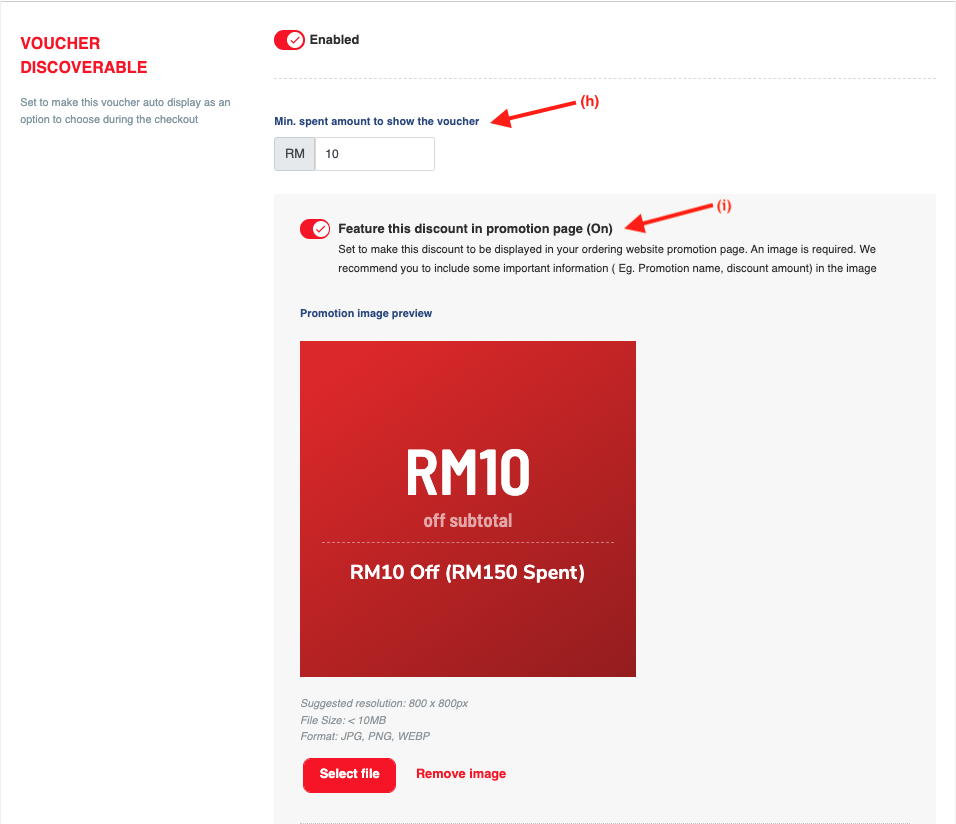
Voucher Discoverability (Minimum Spend to Unlock Voucher Visibility). Set the order amount at which the voucher will be displayed to the customer as a potential option. (h)
Note: This threshold is for display only and is separate from the minimum requirement to apply the discount.
Feature Discount on Promotions Page. Enabling this feature requires uploading a promotional image. (i)
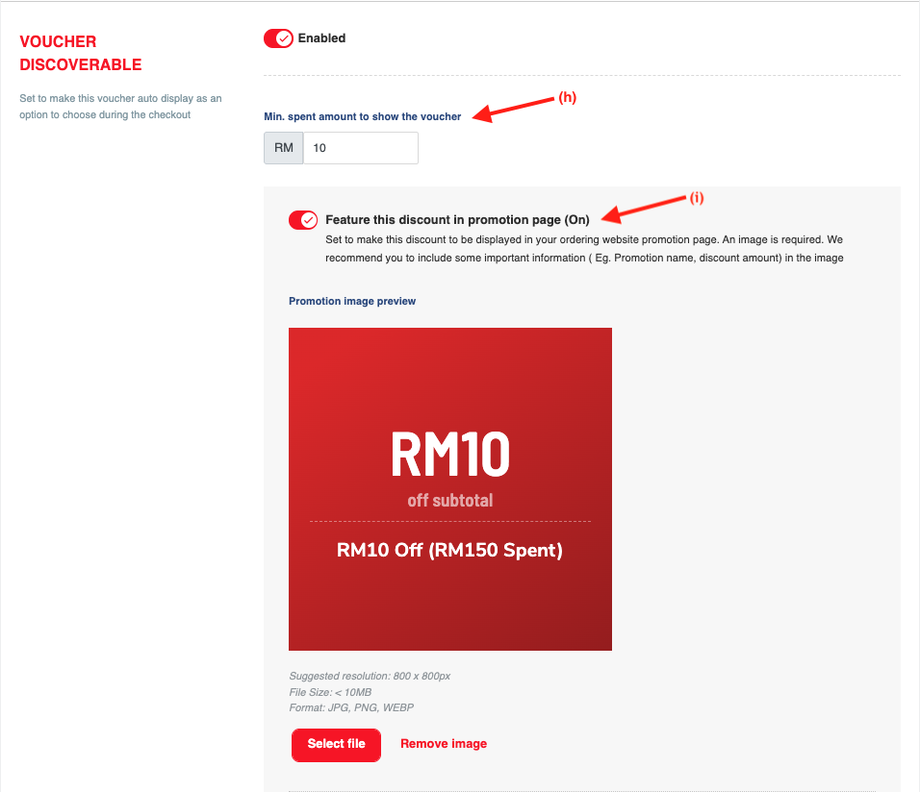
If an image is not provided, a default preview image will be applied.
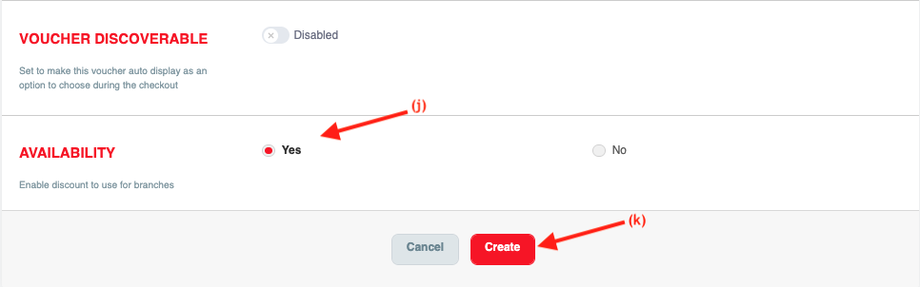
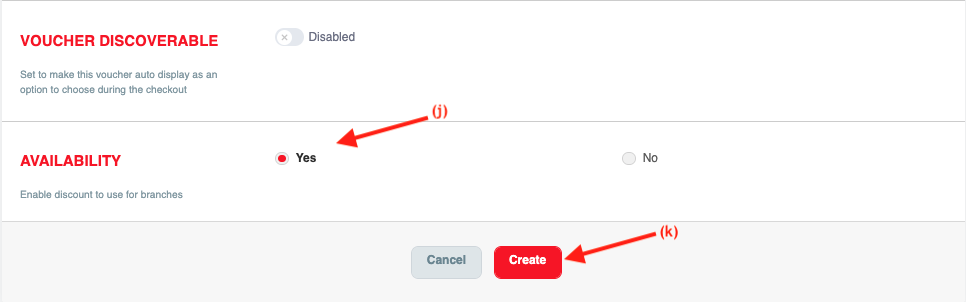
Availability - Select Applicable Outlets. (j)
Once all necessary details have been entered, click 'Create' to complete the setup and activate the discount. (k)